
Start by reconnecting the headphones, closing call or microphone apps, and comparing the same sound over wired audio. Then use the Bluetooth latency test to establish a repeatable baseline. If the delay is constant, apply an A/V offset or enable a low-latency mode. If it grows, stutters, or changes when a microphone opens, investigate Bluetooth profile switching, radio interference, drivers, or the app's own buffer.
Think offset, codec buffering, TV processing, or a low-latency mode that is disabled.
Check clock drift, sample-rate conversion, overloaded devices, and long-running app sessions.
The headset may be switching from a high-quality stereo profile to a hands-free profile.
Keep the Bluetooth connection in scope, but also inspect the app, browser tab, or video file.
Confirm that the Bluetooth headphones delay is real
Before changing codec settings or reinstalling drivers, repeat the same short test. Pause the video, disconnect the headphones, reconnect them, and play a clip with a clear visual event such as a hand clap or drum hit. Keep the source, volume, browser, and output device unchanged. If the delay disappears after reconnecting, the useful clue is a bad session or profile state, not necessarily a permanent hardware fault.
Close voice chat, meeting, screen-recording, and microphone-monitoring apps while you compare playback. Many headsets change behavior when their microphone is requested. Also remove duplicate outputs: a laptop speaker, monitor, TV, and headset may all be playing the same signal with different buffers. If only the Bluetooth device is late, compare it with the site's headphone latency test or a wired pair on the same source.
Do not judge the result from a single tap. Ten consistent observations, or three repeated short recordings, tell you more than one dramatic moment. A small variation is normal for browser playback; a repeatable difference after one setting change is the evidence worth keeping.
| What you notice | Most likely layer | What to try next |
|---|---|---|
| Constant delay | Bluetooth buffer or video processing | Measure it, then use a player or TV sync offset. |
| Delay changes with distance | Radio quality or interference | Move closer, remove competing devices, and retest. |
| Delay starts in a call | Hands-free profile or microphone mode | Close the call app or choose a separate microphone. |
| Only one app is late | App, browser, or media file buffer | Compare another app before changing the headset. |
Use a repeatable Bluetooth latency test baseline
A practical baseline prevents random setting changes. Run the Bluetooth latency test three times with the headphones in their normal listening mode. Record the average, the spread between runs, and whether the sound is consistently early or late. Then repeat after changing exactly one variable, such as game mode, distance, browser, or microphone access.
The result is an estimate of the complete browser-to-ear path, not a laboratory measurement of the Bluetooth chipset. That is still useful: the same method can show whether a fix made this setup faster or more stable. For picture and sound, use the site's audio sync test after the timing test; an A/V offset is often more actionable than a generic latency number.
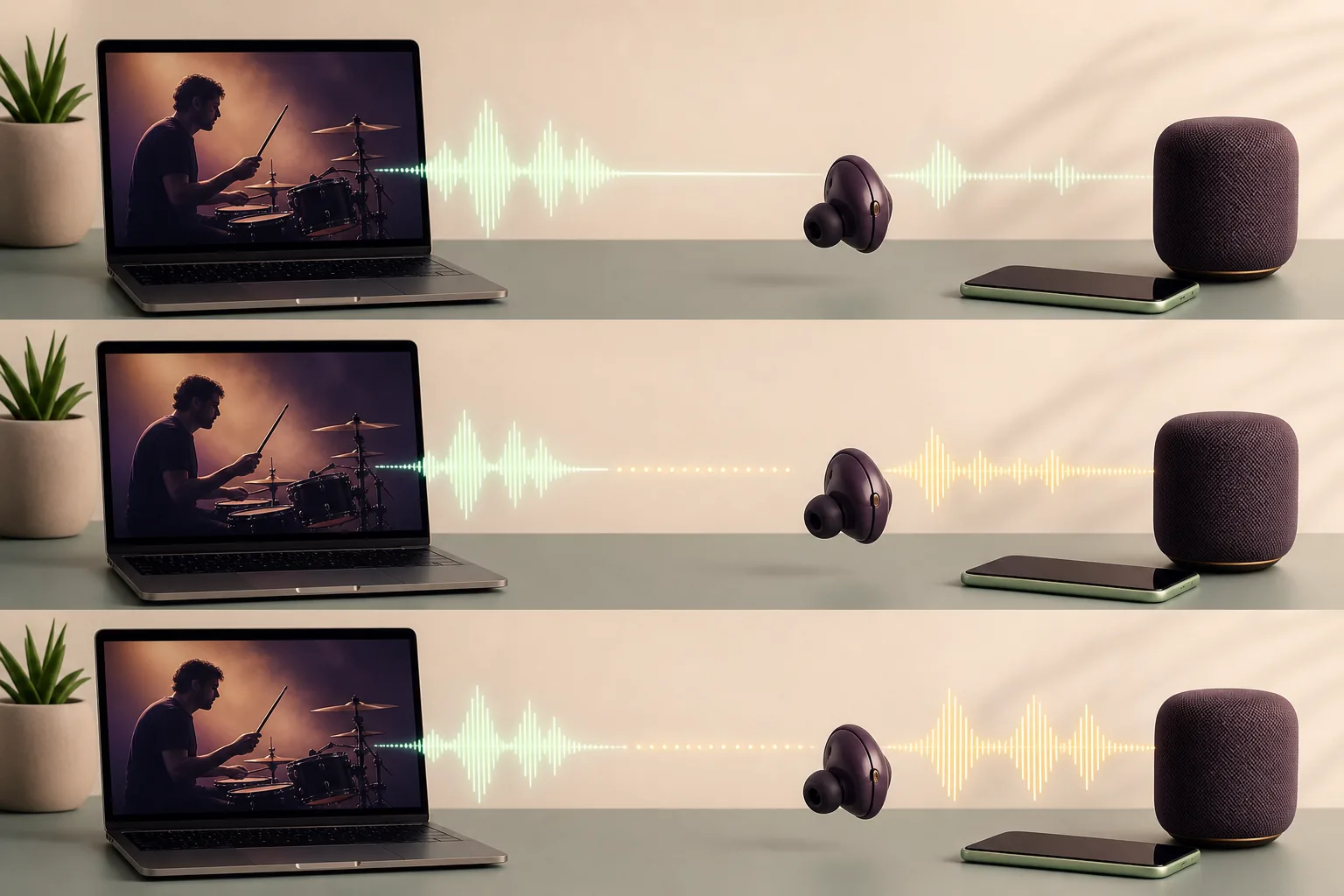
A wired pair on the same source gives you a simple reference for how much delay the wireless path adds.
If you change the browser, codec, distance, and game mode together, you cannot tell which action helped.
A stable but late result calls for an offset; a wide spread calls for connection or profile troubleshooting.
Fix Bluetooth headphones delay on Windows
Start in Windows sound output and confirm that the intended stereo headphones are selected. If a headset exposes both a high-quality stereo output and a hands-free communications output, the hands-free path may sound different and may add a different buffer. Close the app that requested the microphone, select the stereo output for playback, and run the same comparison again.
Next, forget and pair the device again, then check for updates from the PC, motherboard, or Bluetooth adapter manufacturer. A Windows update can provide a working baseline, but the manufacturer's Bluetooth and audio package may be needed for a particular adapter. Avoid installing several driver utilities at once; record the driver version before each change so a rollback is possible.
If the problem began after sleep, docking, or moving between a laptop and a monitor, restart the Bluetooth service path by disconnecting the headphones, disabling and re-enabling Bluetooth, and pairing again. Use the Windows 11 audio latency guide when the same delay affects wired output, USB audio, or multiple devices. If the issue comes with crackles and dropouts, check the Windows audio crackling guide rather than treating every symptom as Bluetooth lag.
A microphone request can switch a headset profile. Close call apps and compare playback before and after the switch.
Use the hardware maker's package when available and change one version at a time.
Reconnect after docking or waking the PC; a fresh pairing can reveal whether the session state was stale.
Reduce Bluetooth audio delay on a phone or TV
On a phone, keep the headphones close while testing and turn off a low-power mode that may change connection behavior. Pause downloads and disconnect unused Bluetooth accessories for the comparison. If the delay appears only in one video app, try another clip or browser before resetting the earbuds; a stream, subtitle, or app buffer can make a wireless problem look worse.
TVs and streaming boxes often add their own video processing. Look for a sound or lip-sync control and adjust it while watching a clear dialogue scene. Some systems expose separate offsets for internal speakers, HDMI, optical output, or Bluetooth. Save the smallest correction that works for the tested source, then recheck a different program because a media file may already contain an offset.
If the headset is connected to a phone and a laptop at the same time, disable multipoint temporarily. A second connection can change routing or wake the microphone unexpectedly. When a reset is necessary, remove the device from the source first, reset the earbuds according to the manufacturer's instructions, and pair them to one source before adding other devices.
- Test one source
Disconnect secondary phones, tablets, and laptops so multipoint routing cannot change during playback.
- Find the sync control
On a TV or player, adjust audio delay while a clear lip movement is visible, then test another program.
- Re-pair cleanly
Forget the device, reset only when needed, and pair to one source before restoring the rest of the setup.
When Bluetooth headphones delay is worst in games
Games make a small delay easier to notice because the visual event and the sound should respond together. Enable the headset's game or low-latency mode if it has one, but expect a possible trade-off in range, battery life, or sound processing. Retest from the same menu and keep the wired result as a reference. A game mode that changes only the headset may not remove video or console processing elsewhere in the path.
Bluetooth is a poor fit for live instrument monitoring when the performer needs immediate feedback. Use wired monitoring or a properly configured audio interface when timing matters. The site's audio interface latency guide covers buffer size, sample rate, and monitoring paths; those controls solve a different layer from Bluetooth pairing. For an online stream or capture setup, also compare the output with the OBS audio delay guide.
If only one game has lag, check its audio output mode, frame pacing, and in-game audio settings before blaming the headphones. If every game and video is late by the same amount, keep the correction at the output or display layer instead of applying separate offsets in every title.
Measure with the mode off and on. Keep the setting that improves response without making the connection unstable.
Use a wired output or a low-latency interface when the performer must hear the input immediately.
Why some Bluetooth headphones delay cannot be removed
Every wireless design chooses a balance between reliability, power use, sound quality, and response time. A low-latency mode can reduce buffering, but it cannot make a Bluetooth path behave exactly like a wired electrical connection. TV video processing, a streaming service buffer, an active microphone profile, or a game engine may add delay after the audio leaves the source.
The right outcome is a stable, repeatable setup with a correction you can apply. If the same headphones are late on every source but wired audio is normal, use a supported low-latency mode or replace the connection for timing-critical work. If the delay is accompanied by crackling, disconnects, or driver spikes, investigate the wider system with the high DPC latency guide. If only browser video is affected, compare the YouTube audio delay guide and the media player's own sync control.
Keep the final measurement and the setting that produced it in your notes. Recheck after a firmware update, a new Bluetooth adapter, a TV input change, or a headset microphone session. That turns a vague feeling of lag into a known baseline you can diagnose again.
Measure the wireless path before changing more settings
Run the browser test with your normal headphones, then repeat it after one fix. A consistent difference is more useful than a guessed codec number.
Bluetooth Headphones Delay FAQ
Why are my Bluetooth headphones delayed?
The delay can come from Bluetooth buffering, a headset profile change, radio retransmissions, device drivers, TV processing, or the app playing the media. Compare the same source over wired audio and repeat the Bluetooth latency test to identify whether the offset is stable.
How to fix audio delay with Bluetooth headphones on a PC?
Reconnect the headphones, close apps using the microphone, choose the stereo playback profile, check the adapter driver, and compare with a wired reference. If the delay is constant, use a supported player or display audio offset after measuring it.
Can game mode remove Bluetooth headphones delay?
It can reduce the headset's buffer when the device supports a game or low-latency mode. Measure with the mode off and on; it may trade battery life, range, or sound processing for faster response and cannot remove delay added by a TV, console, or game.
Why does Bluetooth audio lag get worse when I use the microphone?
Many headsets switch to a hands-free communications profile when the microphone opens. That profile may use different audio quality and buffering. Close the calling app, choose a separate microphone if possible, or use wired audio for two-way monitoring.
Is Bluetooth too slow for live music monitoring?
Ordinary Bluetooth is usually not the best choice when a performer needs immediate feedback. Use wired monitoring or a purpose-built low-latency interface, then confirm the round-trip path with the appropriate audio interface settings.
How can I tell whether the problem is my headphones or the video?
Test another app and another clip, then compare the headphones with wired output on the same source. If only one video or app is late, inspect its buffer or sync control. If every source has the same offset, investigate the Bluetooth path and the output device.
Useful technical references
- Microsoft Support: Pair a Bluetooth device in WindowsOfficial pairing steps are useful when a clean reconnect or re-pair is part of the diagnosis.
- Bluetooth SIG: LE AudioThe Bluetooth SIG overview explains the newer LE Audio feature family without treating every headset as equivalent.