
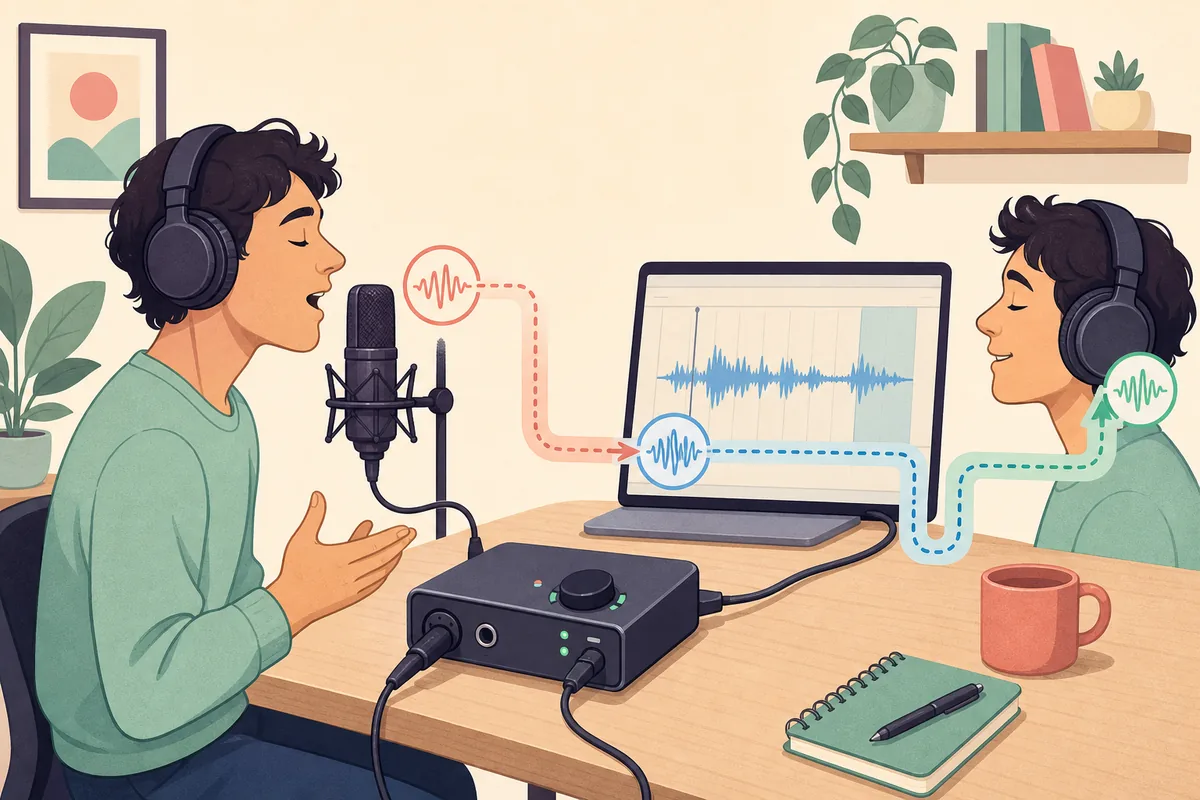
For recording, use the manufacturer ASIO driver on Windows or Core Audio on macOS, start at 64 or 128 samples, remove high-latency plugins, and enable direct monitoring if software monitoring still feels late.
Good target for live monitoring and timing-sensitive recording.
Often workable, but singers and drummers may notice it.
Practical starting range for a stable tracking session.
More processing headroom when live monitoring is not needed.
Where audio interface latency comes from
The monitored signal may pass through analog-to-digital conversion, a USB or Thunderbolt connection, the driver, the DAW buffer, plugins, the output buffer and digital-to-analog conversion before it reaches your headphones. Each stage adds a small amount of time.
Round-trip latency is the complete input-to-output delay. A DAW may report buffer latency, but the real result also includes converter and driver safety buffers. That is why two interfaces using the same sample rate and buffer can feel different.
Choose a practical buffer size
A smaller buffer lowers monitoring delay but gives the computer less time to process audio. A larger buffer is safer for mixing, but it makes live monitoring feel less immediate.
Use 64 samples for a simple recording session on a stable computer, 128 samples as the practical default, and 256-1024 samples when mixing a plugin-heavy project. If you hear clicks or dropouts, raise the buffer one step instead of changing several settings at once.
| Buffer | Best use | Trade-off |
|---|---|---|
| 64 samples | Tracking | Lowest delay, highest CPU pressure |
| 128 samples | General recording | Balanced starting point |
| 256 samples | Editing / light mixing | More stable, audible monitoring delay |
| 512–1024 | Heavy mixing | Maximum headroom, not for live monitoring |
Fix audio interface latency in the right order
Select the interface manufacturer driver, connect the interface directly, match the project sample rate, close unnecessary apps, bypass look-ahead or linear-phase plugins, then lower the buffer. Retest after every change.
On Windows, generic Bluetooth or shared-mode drivers can add substantial delay. On macOS, Core Audio is built in, but aggregate devices and complex routing can still increase latency. Wireless headphones remain a separate high-latency path even when the interface itself is fast.
- Use the correct driver
Choose the manufacturer ASIO driver or Core Audio device.
- Simplify the path
Connect directly and remove Bluetooth or duplicate monitoring routes.
- Bypass heavy plugins
Disable look-ahead, linear-phase and oversampling processors while tracking.
- Lower the buffer
Move one step at a time and stop before clicks or dropouts begin.
- Measure again
Compare the same microphone, project and monitoring route.
Direct monitoring versus software monitoring
Direct monitoring routes the input to the headphone output inside the interface, avoiding the DAW round trip. It is usually the best choice for vocals, guitar or speech when timing matters.
Software monitoring is necessary when you must hear amp simulation, pitch correction or other live effects. In that case, keep the chain light, freeze or bypass heavy plugins, and use a low buffer only while tracking.
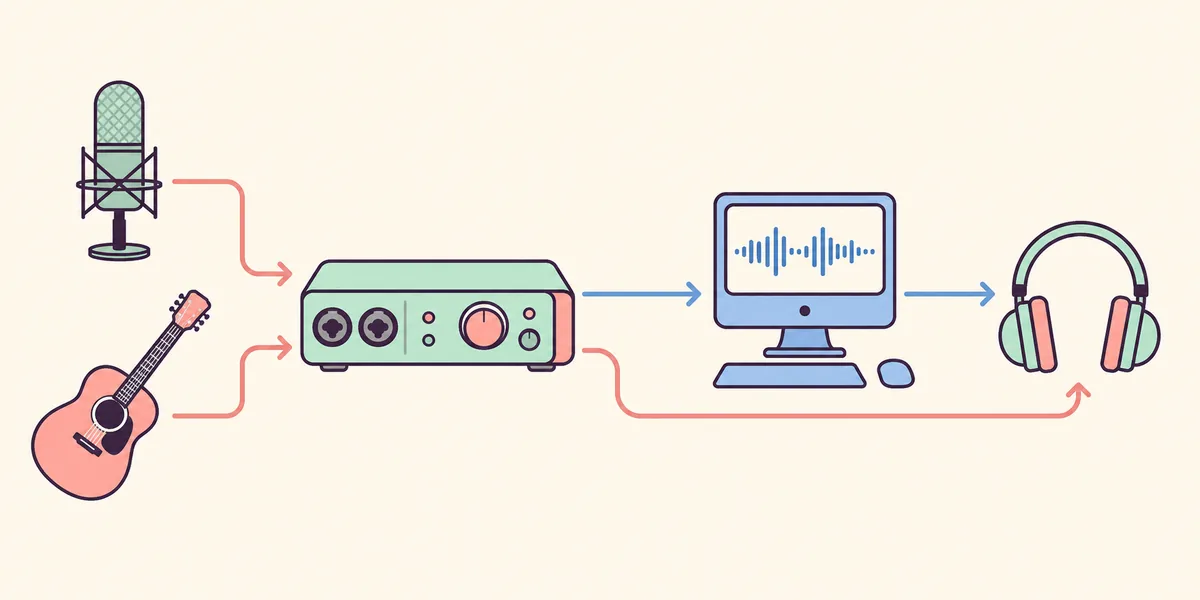
Does a mixer connected to an audio interface add latency?
An analog mixer normally adds negligible delay compared with digital buffering. A digital mixer can add conversion, internal processing and USB/network buffering, especially when the signal passes through both the mixer and interface drivers.
Avoid duplicate monitoring paths. If you hear a slapback or echo, mute either the direct hardware path or the DAW-monitored path. Measure the actual setup instead of assuming every mixer behaves the same.
Measure the monitoring delay you can hear
Use the microphone round-trip test as a repeatable baseline before and after changing drivers, buffer size or routing.
Audio interface latency FAQ
What is a good audio interface latency?
For live monitoring, under about 10 ms round trip often feels comfortable; 10-20 ms may be usable, while larger delays become increasingly obvious for vocals and rhythm-sensitive playing.
Is 128 samples low enough for recording?
Usually. At common sample rates, 128 samples is a reliable starting point. Use 64 if the computer is stable and the session is light; raise it if you hear clicks.
Does a better audio interface reduce latency?
Often, because driver quality and safety buffers matter, but the computer, DAW, plugins, sample rate and monitoring route can dominate the result.
Does direct monitoring have zero latency?
It is near-zero rather than mathematically zero. Conversion and analog circuitry still take a small amount of time, but it avoids the much larger DAW buffer round trip.
Why is my audio interface delayed only with plugins?
Look-ahead limiters, linear-phase EQ, convolution reverb, oversampling and mastering chains can add plugin delay compensation. Bypass them while recording.
Official references used for this guide
- Focusrite: latency and buffer sizeDriver, buffer and recording-latency guidance.
- Apple Logic Pro: I/O buffer sizeOfficial buffer-size and process-buffer controls.
- PreSonus: monitoring latencyDirect monitoring and device-block-size guidance.