
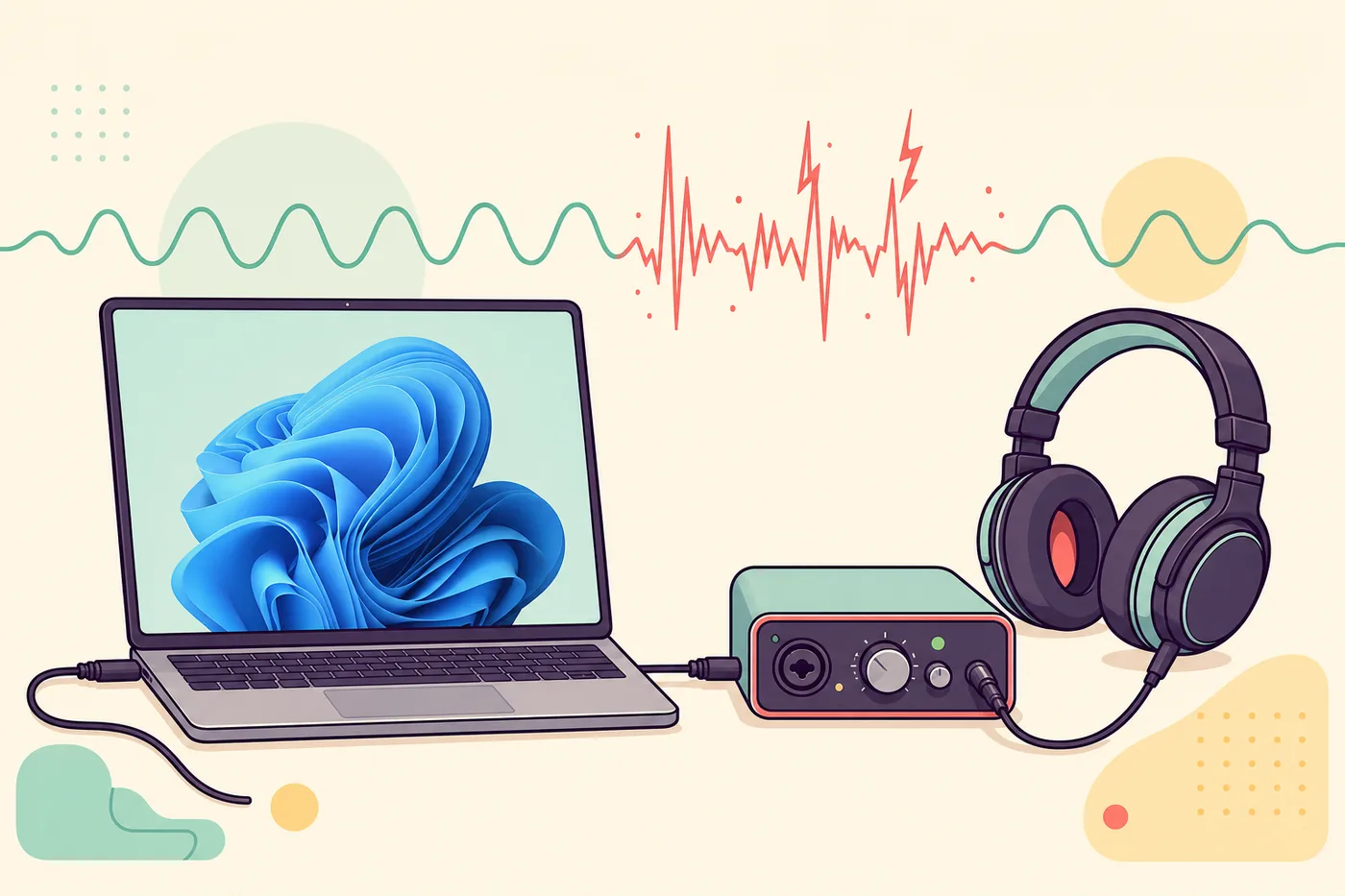
Restart the affected app, test a second output device, disable audio enhancements, match the Windows format, and update the correct manufacturer driver. If crackling appears only in a DAW, raise the ASIO buffer. If it appears under system load across devices, test DPC latency.
The speaker, cable, Bluetooth link, USB port or device driver is the first suspect.
The app format, exclusive mode, plugin load or buffer setting may be unstable.
Shared drivers, enhancements, power management or DPC spikes need attention.
Noise that continues outside Windows can indicate a cable, speaker, jack or power problem.
Identify the crackling pattern before changing settings
Describe the failure precisely. Crackling is a rapid rough texture, popping is an isolated transient, static is a more continuous hiss or buzz, and a dropout is a brief loss of audio. These symptoms can overlap, but the timing tells you where to look. Note whether the problem starts when a game loads, a browser tab begins playback, the CPU becomes busy, Bluetooth reconnects, or a recording project enables plugins.
Create a short repeatable test instead of listening randomly. Use the same local audio file, the same volume and the same output device for two or three minutes. Then repeat with a second app and a second device. A repeatable baseline prevents a temporary reboot improvement from being mistaken for a real fix and keeps you from changing five settings at once.
| Pattern | Likely area | Best first check |
|---|---|---|
| Only laptop speakers | Speaker driver, enhancement or hardware | Test wired headphones at the same volume |
| Only Bluetooth headphones | Wireless link, codec or radio congestion | Test wired output and reconnect Bluetooth |
| Only one game or app | App engine, exclusive mode or format | Compare another app and disable app processing |
| Only in a DAW | ASIO buffer, sample rate or plugin load | Raise the buffer and bypass heavy plugins |
| Across devices under load | System driver scheduling or power state | Reproduce while checking Task Manager and LatencyMon |
| Even before Windows starts | Cable, speaker, jack or power hardware | Test another cable, port and independent device |
Separate speaker, headphone, Bluetooth and USB problems
Change one physical branch at a time. If laptop speakers crackle but wired headphones are clean, Windows itself may be healthy and the issue is likely the speaker driver, vendor enhancement or speaker hardware. If every 3.5 mm device crackles, inspect the jack and cable. If a USB headset or interface fails only on one port, avoid an unpowered hub and test a direct motherboard port.
Bluetooth crackling has a different path from wired audio. Charge the headset, remove and pair it again, keep it away from busy 2.4 GHz devices, and test with the microphone disabled if Windows has switched the headset into a lower-quality hands-free mode. Do not use a Bluetooth result to judge an ASIO interface, and do not assume a clean wired result proves the wireless radio path is stable.
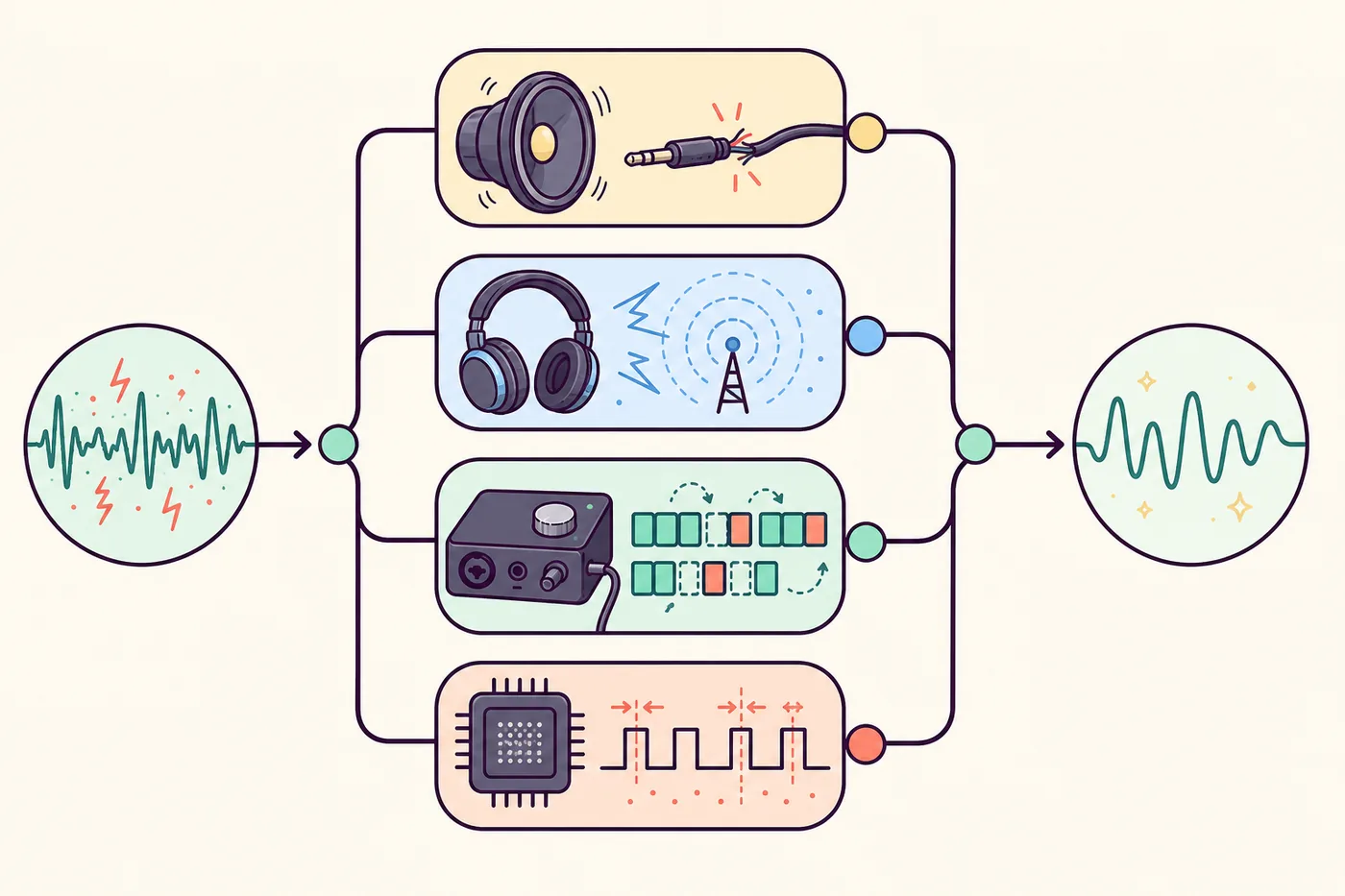
Focus on the original output device, port, cable or its specific driver.
Move toward Windows format, shared processing, drivers and system scheduling.
Check monitoring mode, ASIO buffer, sample rate and plugin processing.
Test power management, USB selective suspend and a fresh device reconnect.
Reset the Windows 11 playback path safely
Open Settings → System → Sound, select the affected output and confirm that Windows is using the device you expect. Turn off spatial audio and optional enhancements temporarily. Then open the device format and choose a conventional value supported by the hardware, such as 24-bit 48 kHz. The goal is not to find a magical sample rate; it is to stop Windows, the app and the device from repeatedly converting between incompatible formats.
If the problem affects one app, inspect its output selection and volume mixer entry. Test exclusive mode both ways because some professional applications benefit from direct control while consumer apps may behave better in the shared engine. Keep the setting that passes the repeatable test. Avoid random registry edits, blanket service disabling and aggressive timer tweaks before the normal audio path has been verified.
- Restart the app and audio device
A stale stream can crackle after sleep, device switching or a driver reset.
- Disable enhancements temporarily
Turn off spatial sound, loudness, noise reduction and vendor effects for the test.
- Match a standard format
Use one supported sample rate across Windows and the app, then retest.
- Compare shared and exclusive mode
Change one option at a time and keep evidence of which mode is stable.
Update the right driver and tune recording buffers
Use the PC, motherboard, audio-device or interface manufacturer as the preferred driver source. Windows Update can provide a functional baseline, but a vendor package may include the correct codec, USB or ASIO components. If crackling began immediately after an update, compare the previous known-good version rather than repeatedly installing unrelated driver utilities. Record the version before and after every change.
For recording software, a buffer that is too small can produce clicks even when ordinary video playback is clean. Start around 128 or 256 samples for tracking, then increase to 512 or 1024 for mixing projects with heavy instruments and effects. A larger buffer adds monitoring delay but gives the CPU more time. Match the project and interface sample rate, bypass oversampling or look-ahead plugins, and use direct monitoring when performers need a stable low-latency cue mix.
| Use case | Starting buffer | If it crackles | Trade-off |
|---|---|---|---|
| Voice or instrument tracking | 128–256 samples | Disable heavy plugins or move to 256–512 | Higher values increase monitoring delay |
| Software instruments | 128–256 samples | Freeze tracks or reduce CPU-heavy processing | Very small buffers require steady CPU scheduling |
| Mixing and mastering | 512–1024 samples | Raise further if the interface supports it | Latency matters less when not performing live |
| Normal Windows playback | Managed by Windows | Check format, enhancements and driver instead | ASIO buffer changes may not affect browser audio |
Check CPU load and DPC latency only when the pattern fits
If crackling appears across several devices when the system is busy, watch Task Manager while reproducing it. A saturated CPU, memory pressure, storage stalls or a background scan can starve a real-time audio stream. Close the workload once to confirm the relationship, but do not treat normal-looking average CPU use as proof that scheduling is healthy; a short driver stall can interrupt audio without showing 100 percent usage.
Run LatencyMon for the exact workload that triggers the noise when basic checks have failed. Look for a repeated driver family that rises with the symptom rather than blaming the single highest number from an idle run. Network, GPU, storage, USB and ACPI paths can all contribute. Follow the dedicated high DPC latency guide for a controlled driver diagnosis, and use the broader Windows 11 audio latency guide when the main symptom is delay rather than interruption.
Multiple outputs crackle during the same workload and a driver family spikes repeatedly.
Only one cable, speaker or Bluetooth headset fails while other paths remain clean.
Only a DAW project crackles and a larger buffer immediately stabilizes it.
Noise continues on another operating system or before Windows audio loads.
Verify the repair and know when to stop software changes
Repeat the original test after every successful-looking change, then add the workload that used to trigger the failure. Check speakers, headphones and the recording path separately because one improvement may hide a second problem. Keep a short note of the device, port, driver version, sample rate, buffer and power state so the fault can be compared after a future Windows or firmware update.
Stop software experiments when the speaker distorts at low volume on another device, a connector cuts in and out when touched, the interface disconnects, Windows logs hardware errors, or the machine crashes. Those signs need cable replacement, another port, firmware support or hardware service. A safe troubleshooting process should narrow the fault; it should not leave the PC with undocumented services, registry values and disabled security features.
- Retest the original trigger
Use the same file, app, device and workload that made the crackle repeatable.
- Test a second path
Confirm that the fix did not only move the symptom from speakers to headphones.
- Reboot and test again
A real fix survives a cold start, sleep cycle and normal background workload.
- Document the stable state
Save driver, format, buffer, port and device details for future comparison.
Check whether your audio path still has noticeable delay
Crackling and latency are different symptoms. After playback is stable, use the browser test to compare the delay of wired, Bluetooth and speaker paths.
Windows 11 audio crackling FAQ
Why is my audio crackling in Windows 11?
Common causes include one faulty output path, audio enhancements, mismatched formats, a device driver, a DAW buffer that is too small, Bluetooth radio conditions, power management or DPC scheduling spikes. Isolate the pattern before choosing a fix.
Why do my laptop speakers crackle but headphones sound normal?
That pattern points toward the internal speaker path, its vendor enhancement, amplifier or hardware rather than a system-wide Windows fault. Test low volume, disable enhancements and compare the manufacturer's audio driver.
Can a small ASIO buffer cause popping and clicks?
Yes. A buffer that is too small gives the computer less time to process each block. Raise it gradually, match the sample rate and bypass heavy plugins while testing.
Should I disable audio enhancements?
Disable them temporarily as a diagnostic step. If the crackling stops, re-enable effects one at a time or leave only the unstable processing disabled.
Does LatencyMon fix audio crackling?
No. LatencyMon is a diagnostic tool. It helps identify repeated driver scheduling delays when crackling occurs across devices under load; the fix depends on the responsible driver or device family.
Can Bluetooth interference cause crackling instead of delay?
Yes. Weak signal, radio congestion, low battery, profile switching and driver problems can create brief interruptions or rough audio. Compare wired output before changing system-wide settings.
Official troubleshooting references
- Microsoft Support: Fix distorted or crackling audio in WindowsMicrosoft's official sequence covers output devices, enhancements, formats and drivers.
- Focusrite Support: Interface latency and buffer guidanceManufacturer guidance for buffer size, recording load and interface troubleshooting.
- Resplendence LatencyMonOfficial page for the driver-latency diagnostic tool referenced in the advanced step.