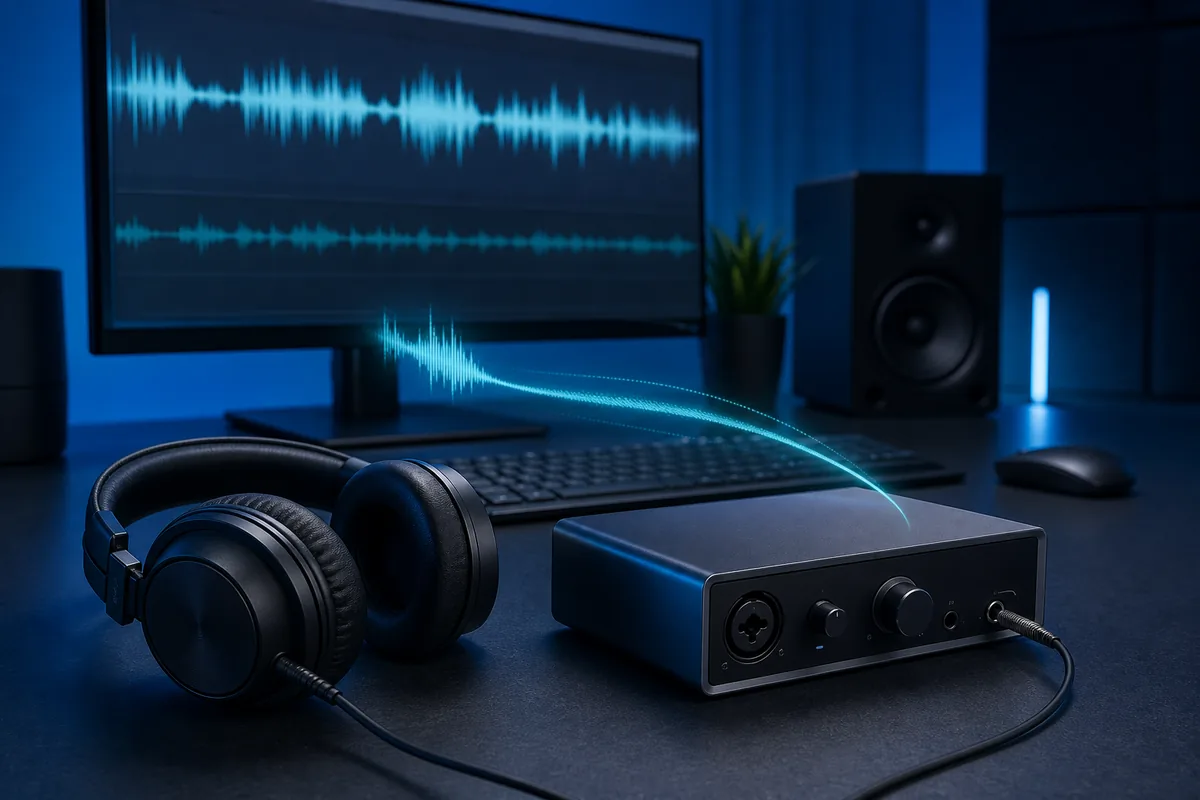
Start with a wired output, restart the audio device, install the manufacturer driver, turn off enhancements and spatial sound, use one matching sample rate, and close apps that may hold the device. For recording, select ASIO and a 64- or 128-sample buffer.
Check the driver, enhancements, output format, power state and device connection.
Check the app device, audio API, buffer, plugins and exclusive-mode behavior.
Codec and radio buffering usually dominate; Windows settings cannot remove all of it.
Use the interface driver, a small buffer and direct monitoring when timing matters.
Identify which Windows 11 audio path is delayed
Do not begin by changing every sound option. First compare the same clip through wired headphones, built-in speakers and Bluetooth. Then test a second app. If every wired output is late, the system driver or processing chain is the likely target. If only one app is late, its audio engine, buffer or plugins are more likely responsible.
Separate playback latency from round-trip latency. Playback latency is the delay before sound reaches your ears. Round-trip latency includes microphone or instrument input, software processing and output. A browser test gives a practical comparison, while a DAW or audio interface control panel gives the most useful buffer information for recording.
| Symptom | Likely cause | First check |
|---|---|---|
| Every app is delayed | Driver, enhancement or output format | Test wired audio and disable processing |
| Only games are delayed | Game engine, Bluetooth or frame/audio sync | Compare wired output and another game |
| Only a DAW is delayed | Buffer, driver mode or plugins | Select ASIO and bypass look-ahead plugins |
| Sound drifts from video | Clock mismatch or unstable capture path | Match sample rates and record a longer test |
| A second copy or echo is heard | Two monitoring paths | Mute hardware or software monitoring |
Use the safest Windows 11 fix order
Change one variable, replay the same short test, and write down whether the delay improves. This prevents a temporary restart from being mistaken for a permanent fix and makes it easier to undo a setting that causes dropouts.
Windows updates can replace or reconfigure audio components, but the newest generic driver is not always the lowest-latency choice for a USB interface. Prefer the PC, motherboard, headset or interface manufacturer's supported driver when one exists.
- Restart the audio device and the app
Disconnect and reconnect USB or Bluetooth audio, fully close the affected app, and reboot Windows if the device has been active for a long session.
- Select the intended output
Open Settings > System > Sound and confirm the app is using the same output you are testing. Remove unused virtual outputs from the comparison.
- Install the correct driver
Use Windows Update for common devices, then check the hardware manufacturer's support page for a dedicated driver or control panel.
- Disable enhancements and spatial sound
Temporarily turn off audio enhancements, surround virtualization, room correction and spatial sound. Re-enable only the feature you actually need.
- Match one sample rate
Use the same practical format across Windows, the interface control panel and the recording or streaming app. A 48 kHz workflow is common for video; 44.1 kHz is common for music.
- Retest without background audio tools
Close voice changers, virtual mixers, screen recorders, communication apps and browser tabs that may process or reopen the audio device.
Choose the right driver mode, format and buffer
Shared-mode Windows audio is convenient because several apps can play at once, but conversion and mixing may add buffering. Exclusive mode can shorten or stabilize the path for a compatible app, yet it may block other apps. Test both rather than assuming one mode is always faster.
For a DAW, use the manufacturer's ASIO driver instead of a generic emulation layer. Begin at 128 samples, try 64 samples for a light recording session, and raise the buffer when clicks or CPU overload appear. For ordinary video playback, very small DAW buffers do not help because the app may use a different Windows audio path.
Best for normal desktop use and multiple apps. Stability and compatibility are prioritized over the shortest path.
Useful for compatible players and measurement apps when direct format control matters. Other apps may become silent.
Preferred for recording through a supported audio interface. Buffer size and direct monitoring are controlled in the interface or DAW.
Treat Bluetooth and USB latency as different problems
Bluetooth audio adds encode, transmission and earbud buffering. Video apps can hide part of the delay with sync compensation, while games and live monitoring cannot predict every sound. If timing matters, compare the same task with wired headphones before spending time on registry tweaks or codec claims.
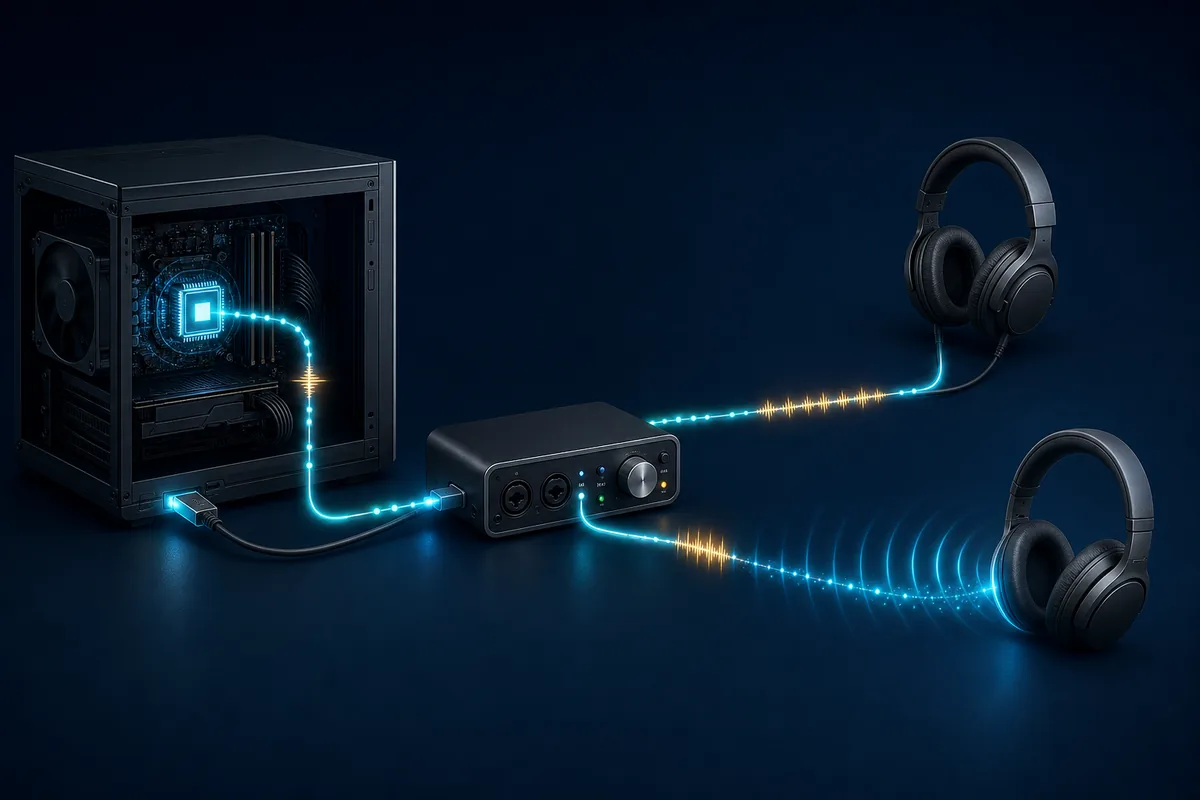
USB audio depends on the port, driver and power path. Connect an interface directly to the computer for testing, avoid an overloaded hub, try another USB controller, and disable aggressive USB power saving only when the symptom points to wake-up pauses or repeated dropouts. Do not disable broad power-management features without a baseline and a reason.
Use advanced checks only after the basic path is stable
Intermittent crackles, spikes or large changes under load can point to driver scheduling rather than a constant buffer delay. Update chipset, graphics, network and USB drivers from supported sources, because a device that blocks the system too long can disturb real-time audio even when the sound driver itself is current.
For production systems, compare a clean startup, a different USB port, a new user profile and a simple project with no third-party plugins. If the problem began after a driver or Windows update, record the version and test a supported rollback only when the manufacturer provides a clear path. Avoid random service-disabling scripts and registry packs; they can create new reliability or security problems.
- Build a repeatable baseline
Use the same output, clip, app, volume and measurement method for every comparison.
- Test load separately
Compare idle playback with a CPU- or GPU-heavy workload to find scheduling spikes.
- Escalate with evidence
Save driver versions, buffer settings and the exact device path before contacting the PC or audio-device vendor.
Verify the fix instead of trusting one impression
Repeat at least five trials and compare the median or a stable range. Human tap tests include reaction time, so they are best for before-and-after comparisons on the same setup. Microphone round-trip tests include the speaker, room and input path, which is useful for monitoring but not identical to one-way headphone latency.
Keep the lowest stable configuration, not merely the smallest number. A setting that produces clicks, missed notes, drift or application crashes is not a successful latency fix.
Create a Windows 11 latency baseline
Run the browser audio latency test with one wired output, then repeat the same mode after each driver or sound-setting change.
Windows 11 audio latency FAQ
Why does Windows 11 audio suddenly become delayed?
A driver restart, new enhancement, Bluetooth profile change, virtual audio tool, sample-rate conversion or app update can change the path. Compare wired audio in a second app before making broad system changes.
Should I disable audio enhancements in Windows 11?
Disable them temporarily for diagnosis. If latency improves, re-enable features one at a time. Some devices rely on vendor processing for tone or speaker protection, so do not assume every enhancement should remain off.
What buffer size should I use in Windows 11?
For recording with ASIO, 128 samples is a practical start and 64 samples can work on a light, stable system. Use a larger buffer for mixing. Normal desktop apps may not expose or use the DAW buffer.
Can Windows 11 remove Bluetooth headphone delay?
It can reduce avoidable processing, but it cannot remove the codec, radio and earbud buffers. Wired output or a purpose-built low-latency wireless system remains the better reference for games and live monitoring.
Does exclusive mode always reduce audio latency?
No. It can avoid shared mixing and conversion for a compatible app, but driver behavior and app buffering still matter. Test it with the exact app and confirm other audio needs are not disrupted.
Windows audio references used for this guide
- Microsoft Support: Fix sound or audio problems in WindowsOfficial troubleshooting order for output selection, enhancements, formats, services and drivers.
- Microsoft Learn: Low latency audioTechnical background on Windows audio paths and low-latency application behavior.
- Microsoft Support: Fix Bluetooth problems in WindowsOfficial Bluetooth connection and driver troubleshooting.