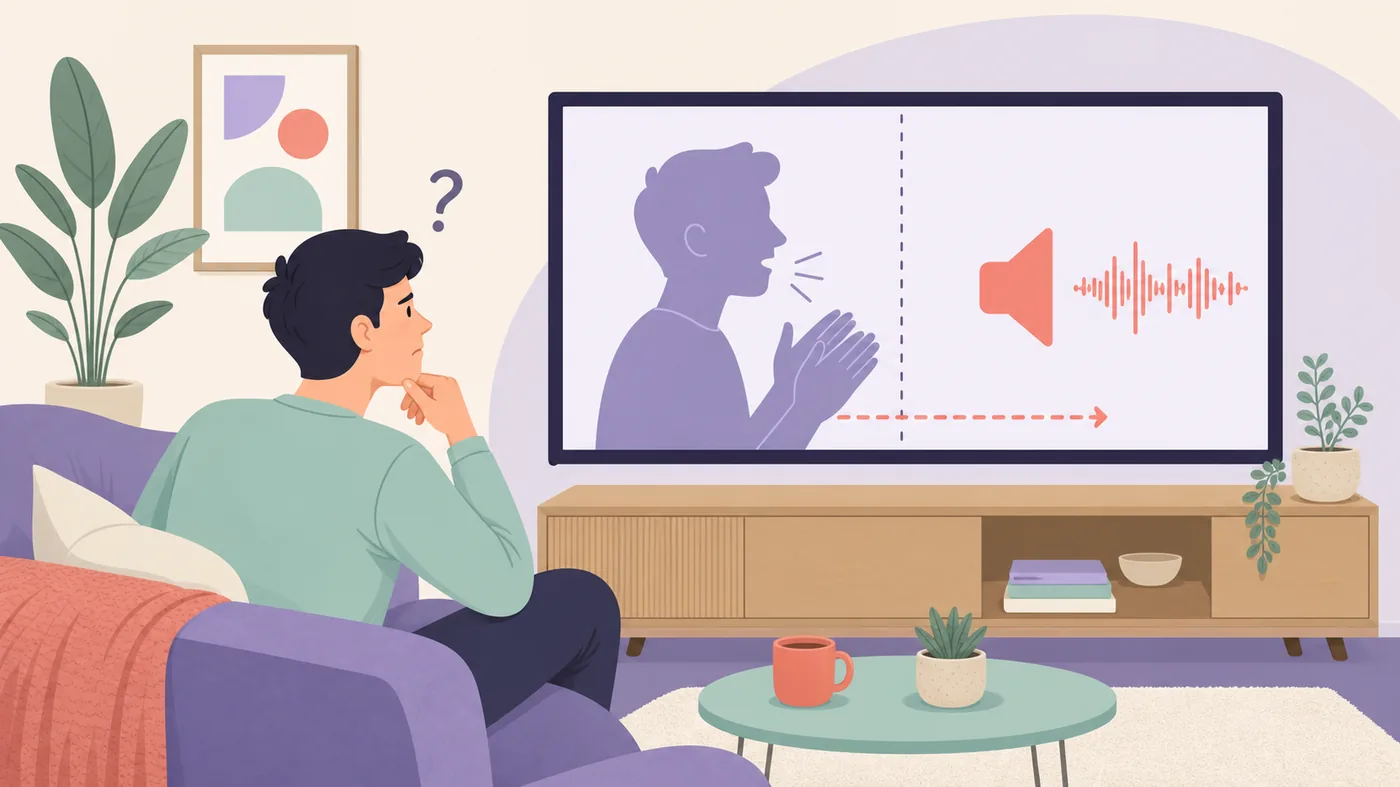
Replay the same moment, open a second video, switch temporarily to the device speaker or wired headphones, and try YouTube in another browser or app. If only one video is wrong, the upload is probably misaligned. If every video improves when Bluetooth, a soundbar, or one browser is removed, repair that playback path instead of changing YouTube account settings.
The uploaded audio track may already be out of sync. Device changes will not permanently repair that file.
A stale tab, extension, cache, decoder, or app process is the likely boundary.
Bluetooth buffering, HDMI processing, or a soundbar setting is adding delay.
Restart, update, connection, driver, or device-level checks deserve priority.
Diagnose the YouTube audio delay before changing settings
Pick a moment with a clear transient: a clap, a door closing, a drum hit, or a face speaking directly to camera. Replay the same two or three seconds. Decide whether the sound is consistently early, consistently late, or starts aligned and drifts farther away. A fixed offset points toward an encoded video, Bluetooth, HDMI, or processing delay. Growing drift more often points toward playback instability, a browser or app problem, or an unusual source file.
Next, open a different video from another channel. Then keep the original video and change only one layer at a time: output device, browser, YouTube app, or screen. This small matrix prevents random setting changes. You can also open the Audio Sync Test in the same setup to check whether the whole playback path is delayed rather than the YouTube video alone.
| What you observe | Most likely boundary | Best next check |
|---|---|---|
| Only one upload is out of sync | Source video or upload | Compare another upload; report the video if needed |
| All videos fail in one browser | Browser profile, extension, or decoder | Private window, extensions off, then another browser |
| Delay appears only on earbuds | Bluetooth audio path | Use the speaker or a wired output for comparison |
| TV speakers are fine but soundbar is late | HDMI/eARC or soundbar processing | Check passthrough, PCM, and lip-sync controls |
| Sync starts well and slowly drifts | Playback or source timing instability | Restart playback, lower quality temporarily, update the app |
Run a five-minute isolation test
Do these checks in order and stop when the symptom changes. Reload the video and seek back to the same cue. Play a second video. Set playback speed to 1× and temporarily choose a moderate quality such as 720p. Disconnect Bluetooth and use the built-in speaker or a cable. Finally, try the same URL in another current browser or in the YouTube app.
A useful result changes one variable. If changing video fixes it, do not reset the device. If changing output fixes it, do not clear the browser. If a second browser fixes it, focus on the original browser profile. Keep notes about the test video, timestamp, device, output, and whether sound was early or late so the final verification uses the same conditions.
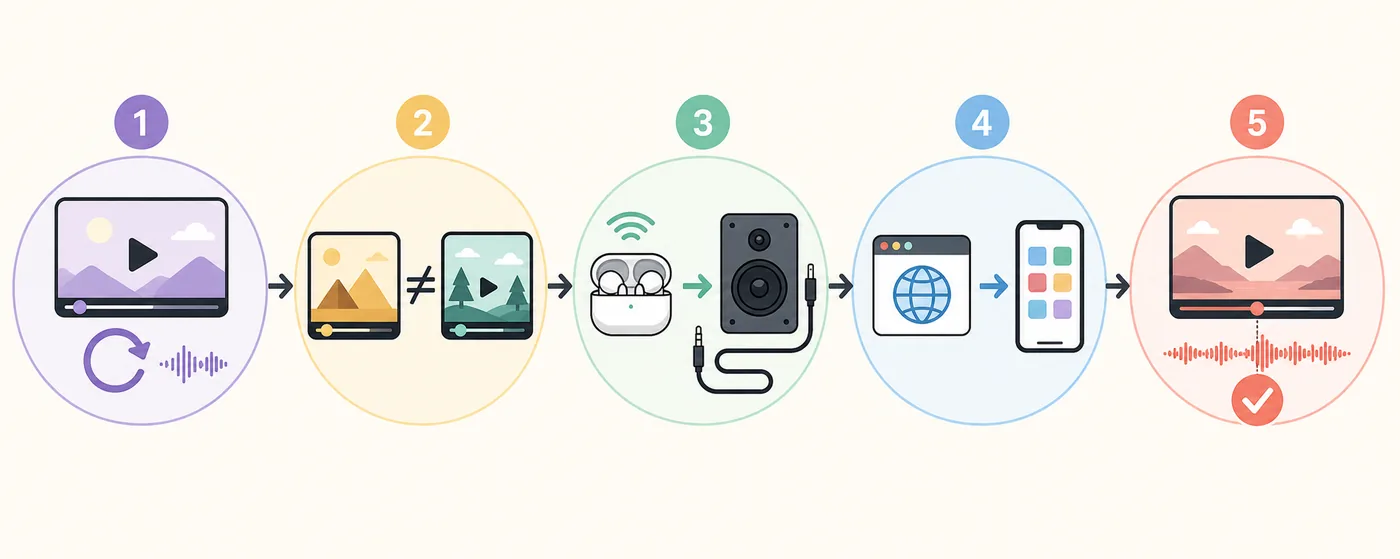
- Replay one clear cue
Use speech or an impact and decide whether the offset is fixed or increasing.
- Compare another upload
This separates a bad source video from a playback-path problem.
- Remove wireless audio
Switch to the device speaker or a wired output without changing anything else.
- Change the player
Try another browser, a private window, or the official app.
- Retest the original setup
Confirm the symptom returns before treating the last change as the cause.
Fix YouTube audio out of sync in Chrome, Edge, Firefox, or Safari
Start with a hard reload and a private window. A private window is valuable because it often removes normal extension interference while preserving the same computer, network, and audio device. If sync is correct there, disable extensions that modify video, audio, captions, equalization, speed, advertising, or page content. Re-enable them one at a time instead of deleting the whole profile.
Update the browser and restart it completely. Close background tabs that are decoding video or using real-time audio. If one browser remains wrong, test its hardware-acceleration setting in both states, restarting after the change; graphics drivers and video decoding combinations can behave differently. Keep the state that produces stable playback, not the state that sounds theoretically faster. Check the operating-system output device, spatial audio, enhancements, and format only when every browser on that computer is affected. Select the intended output explicitly, disable optional processing for a comparison, and reconnect USB audio devices directly rather than through an overloaded hub. For broader Windows symptoms, use the Windows 11 audio latency guide.
Review extensions, stored site data, and browser-profile settings.
Update or reset only the affected browser; the upload and output are probably usable.
Move outward to the audio device, system processing, driver, or display path.
Test connection stability and video decoding before changing audio sync controls.
Fix delayed YouTube sound in the Android or iPhone app
Force-close YouTube, reopen it, and replay the same timestamp. Then update the YouTube app and the phone operating system from their official stores and settings. On Android, clearing the YouTube app cache can remove stale temporary playback data; avoid clearing all app data unless you are prepared to sign in and restore preferences. On iPhone or iPad, restart the device and reinstall the app only after the simpler comparison checks fail.
Bluetooth earbuds add their own buffering and may change modes between music, microphone use, gaming, and calls. Disconnect them and compare the phone speaker. If the speaker is synchronized, forget and re-pair the earbuds, close apps that may be using the microphone, and check whether the earbud maker provides a low-latency or gaming mode. AirPods do not support aptX Low Latency, so do not follow guides that ask you to enable that codec on AirPods. Use the Bluetooth Latency Test to compare outputs under the same conditions.
Fix YouTube audio delay on a smart TV, streaming box, or soundbar
Restart the YouTube app, then power-cycle the TV and any streaming box or soundbar. Test the TV speakers with the soundbar disconnected or bypassed. If the TV speakers are synchronized, the delay is downstream: HDMI/eARC negotiation, surround decoding, virtual sound, or soundbar processing. If both outputs are late, update the TV or streaming app and compare another input or streaming service.
Audio format choices matter because a television may decode, re-encode, and forward sound. Compare passthrough or bitstream with PCM, one option at a time. Disable virtual surround, dialogue enhancement, auto volume, and similar processing for the test. A lip-sync adjustment can compensate for a stable offset, but it should be the last step because some controls only delay audio further and cannot correct sound that is already late.
HDMI problems can be device-specific. Reseat the cable, use the documented ARC/eARC ports, and remove an AV receiver temporarily if the route is unclear. Record the original values before changing them. The goal is not to copy a universal setting; it is to find the shortest stable path for your television, source device, and audio system.
Verify the fix and recognize an upload-side problem
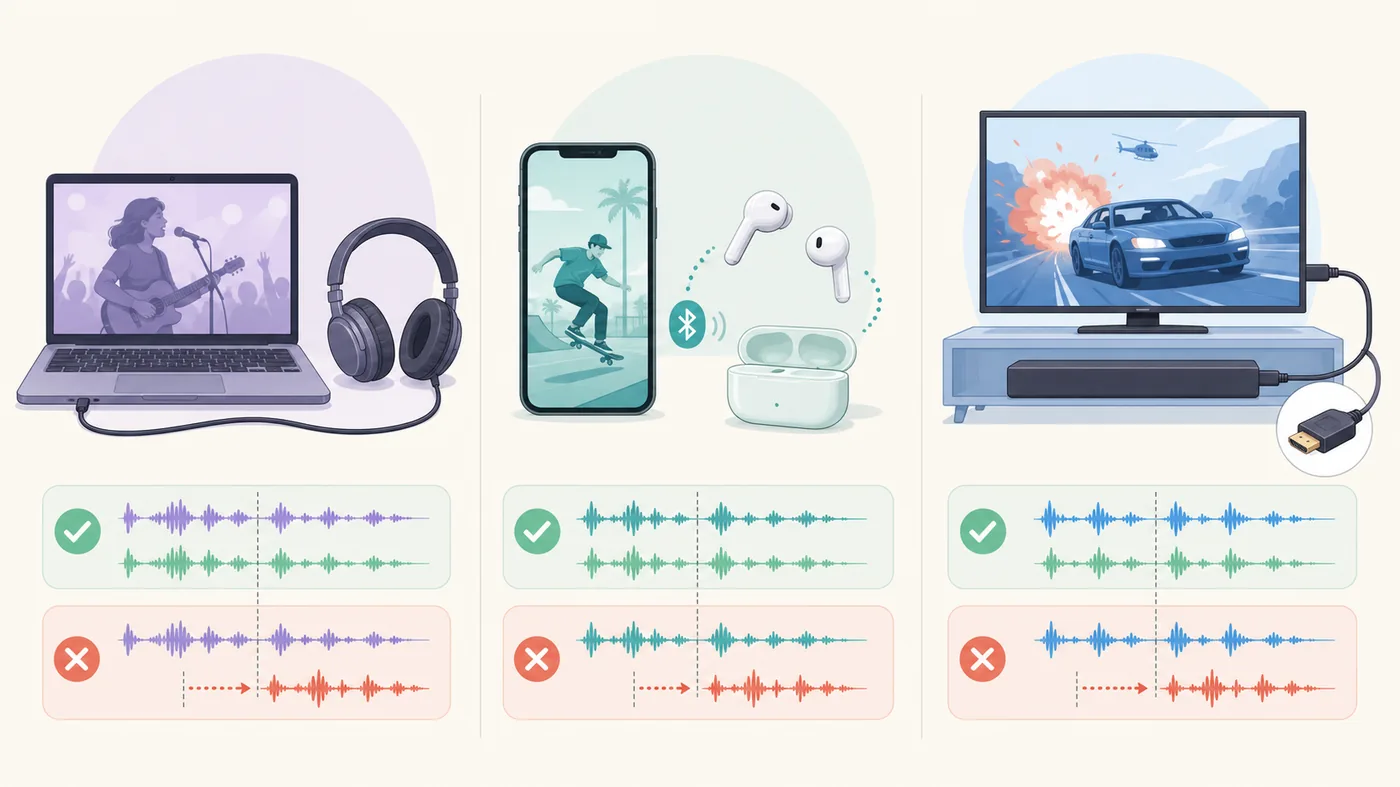
Return to the original video and timestamp after each meaningful change. Then test a second talking-head video and a clip with sharp impacts. A repair is credible when the offset stays small after seeking, pausing, changing quality, and playing for several minutes. If the delay returns only after sleep, an output change, or reconnecting HDMI, repeat that exact transition before closing the case.
When one upload is out of sync on every device and other videos are correct, viewers cannot repair the underlying file. Use YouTube's feedback or reporting controls if appropriate and avoid permanent system offsets that would break correctly synchronized videos. Creators should compare the exported local file, check constant versus variable frame-rate handling, align tracks in the editor, and upload a corrected render rather than asking viewers to compensate.
Browser timing tests are estimates, not laboratory measurements. Human reaction, display processing, Bluetooth buffering, and the chosen cue all affect the result. Use repeated comparisons to identify the faulty layer; do not treat one millisecond number as proof that a specific driver, app, or service is defective.
Retest the same cue several times and keep the smallest reversible correction.
Watch for decoder, connection, app, or source timing instability over several minutes.
Treat it as a source problem and avoid global delay compensation.
Leave YouTube troubleshooting and inspect the system or hardware path.
Check sound-to-picture timing in your current setup
Run the browser audio sync test with the same screen and output, then compare one change at a time.
YouTube audio delay FAQ
Why is YouTube audio out of sync but other apps are fine?
The boundary may be one upload, the YouTube app, browser extensions, stored site data, or a playback decoder. Compare another video and another browser or app before changing system audio settings.
Why does YouTube sound lag only with Bluetooth headphones?
Bluetooth encoding, radio transmission, earbud buffering, and device processing add delay. Compare the built-in speaker or a wired output, then re-pair the headphones and test any low-latency mode they actually support.
Can playback speed fix YouTube audio delay?
Return speed to 1× for diagnosis. Changing speed may restart the player and temporarily hide a problem, but it is not a reliable correction for a persistent offset.
Should I change the TV lip-sync setting?
Only after testing TV speakers, soundbar bypass, passthrough versus PCM, and optional processing. A lip-sync control is useful for a stable path-specific offset, but it can worsen audio that is already late.
What if only one YouTube video is out of sync?
If the same upload is wrong on multiple devices while other videos are correct, the source file or upload is probably misaligned. Viewers should not apply a global system delay for one bad video.
How can I tell whether the fix really worked?
Replay the same speech or impact cue, seek to another section, pause and resume, and let the video run for several minutes. Confirm the result on a second video before keeping the change.
Playback and audio troubleshooting sources
- YouTube Help: troubleshoot video streaming issuesOfficial playback checks for connections, app or browser updates, cache, and device restarts.
- Google Chrome Help: update ChromeOfficial instructions for checking and applying browser updates.
- Microsoft Support: fix sound problems in WindowsOfficial Windows guidance for output selection, troubleshooters, enhancements, formats, and drivers.
- Apple Support: distorted or interrupted Bluetooth audioOfficial Bluetooth isolation advice for wireless headphones and environmental interference.