Run LatencyMon while reproducing the crackle or dropout for 10–15 minutes. Sort the Drivers tab by highest execution time and total execution, then test the device family behind the repeated offender. Update, roll back or temporarily disable only one nonessential device at a time and repeat the same workload after every change.
A useful baseline for many systems, not a universal guarantee.
May be fine at larger buffers; reproduce the real workload.
Short buffers and busy sessions may expose clicks or stutter.
Repeated spikes aligned with symptoms deserve driver-level testing.
What high DPC latency means—and what it does not mean
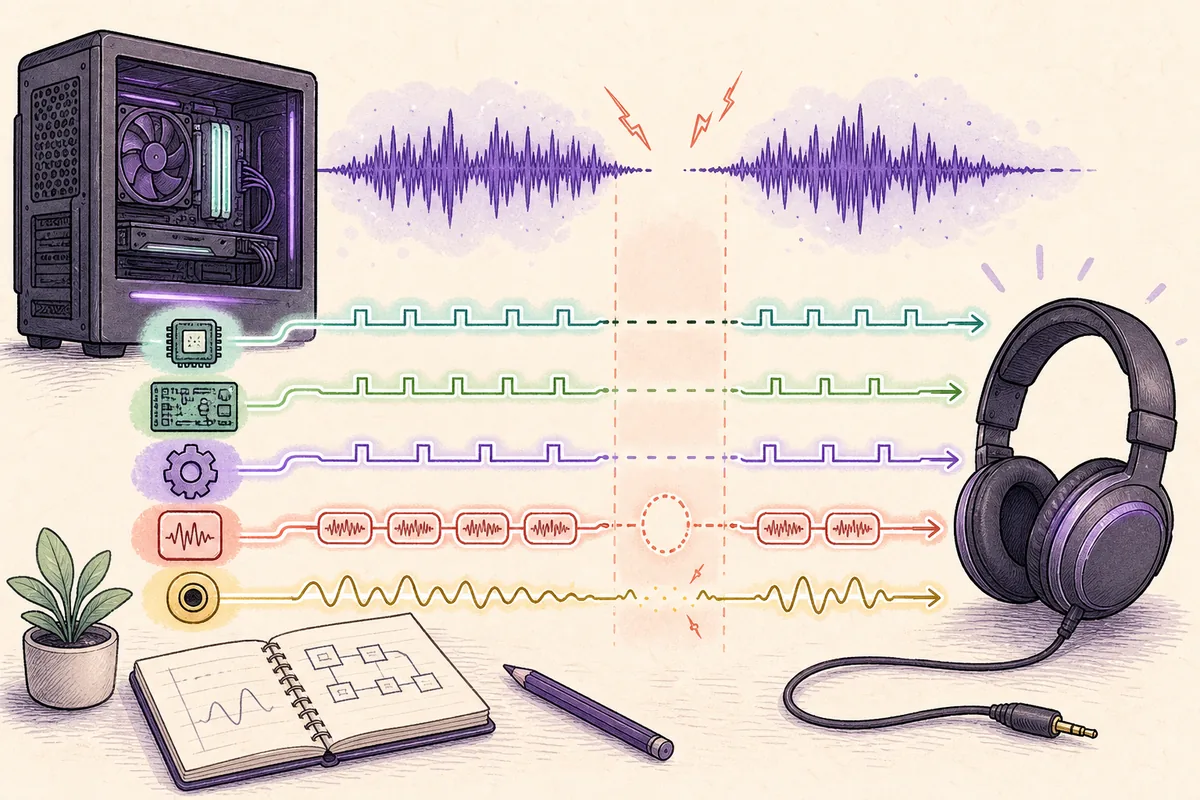
A Deferred Procedure Call lets a Windows driver postpone part of its interrupt work until a slightly lower priority. The mechanism is normal. The problem appears when a driver holds the processor too long or repeatedly queues work, preventing a time-sensitive audio buffer from being filled before its deadline. The audible result may be a click, pop, robotic burst, short silence or a simultaneous frame hitch.
DPC latency is not the same as Bluetooth delay, a DAW buffer setting or video lip-sync offset. A computer can have low playback delay but still crackle because a driver blocks the processor at the wrong moment. It can also show one large measurement without an audible problem. Diagnose the repeated pattern and its timing, not a single scary number.
| Symptom | Best first target | Why |
|---|---|---|
| Clicks across browsers, games and a DAW | DPC/ISR driver diagnosis | The fault crosses applications and audio engines. |
| Only one DAW project crackles | Buffer and plugin load | Look-ahead plugins or a small ASIO buffer may be the direct cause. |
| Only Bluetooth is late | Bluetooth path and codec | Wireless buffering is different from DPC execution time. |
| Sound slowly drifts from video | Clock and sync path | Drift usually needs sample-rate or capture timing checks. |
Create a repeatable baseline before changing drivers
Restart Windows, connect the audio device you normally use and close optional monitoring utilities. Keep the actual trigger available: a game, video call, DAW session, browser video or file transfer. Record the audio device, sample rate, buffer size, power mode and whether Wi-Fi, Bluetooth, an external display or USB dock is active.
Start LatencyMon and reproduce the workload long enough to include the failure. Ten to fifteen minutes is more useful than an idle one-minute run. Mark the time of each audible dropout. If the report remains clean while idle, add one workload at a time—network traffic, GPU load, USB recording or disk activity—until the spike can be repeated.
- Record the starting state
Write down driver versions, power mode, connected devices, audio buffer and the exact symptom.
- Run the real workload
Trigger the game, call, recording or transfer that exposes the fault.
- Change one variable
Repeat the same workload for a comparable duration after each test.
Read LatencyMon without blaming the wrong file
The Main tab is a warning summary, not a final diagnosis. In the Drivers tab, compare highest execution time with total execution time and execution count. A driver that repeatedly appears near the top while the symptom occurs is more actionable than a one-off spike. Save a screenshot or text report before changing anything so the next run can be compared.
Names such as ntoskrnl.exe, Wdf01000.sys or dxgkrnl.sys can be framework or kernel components that surface work initiated by another device. Use the file name as a route to a device family, then test that family. Do not delete system files, disable security protections or copy random drivers from download sites.
ndis.sys often points toward Wi-Fi, Ethernet, VPN, filter or power-management testing.
nvlddmkm.sys, amdkmdag.sys or dxgkrnl.sys suggests GPU driver, display-audio or overlay testing.
storport.sys or storahci.sys calls for controller, firmware, disk-health and power checks.
USB or WDF entries require testing hubs, docks, interfaces, webcams and device-specific drivers.
Match the repeated spike to a device family
Disable only nonessential devices for a controlled test. Turning off Wi-Fi in Device Manager for one run can confirm a network path; disconnecting a USB dock can separate the dock from the audio interface; disabling monitor audio can test the GPU audio component. Re-enable the device after the test if it is not responsible.
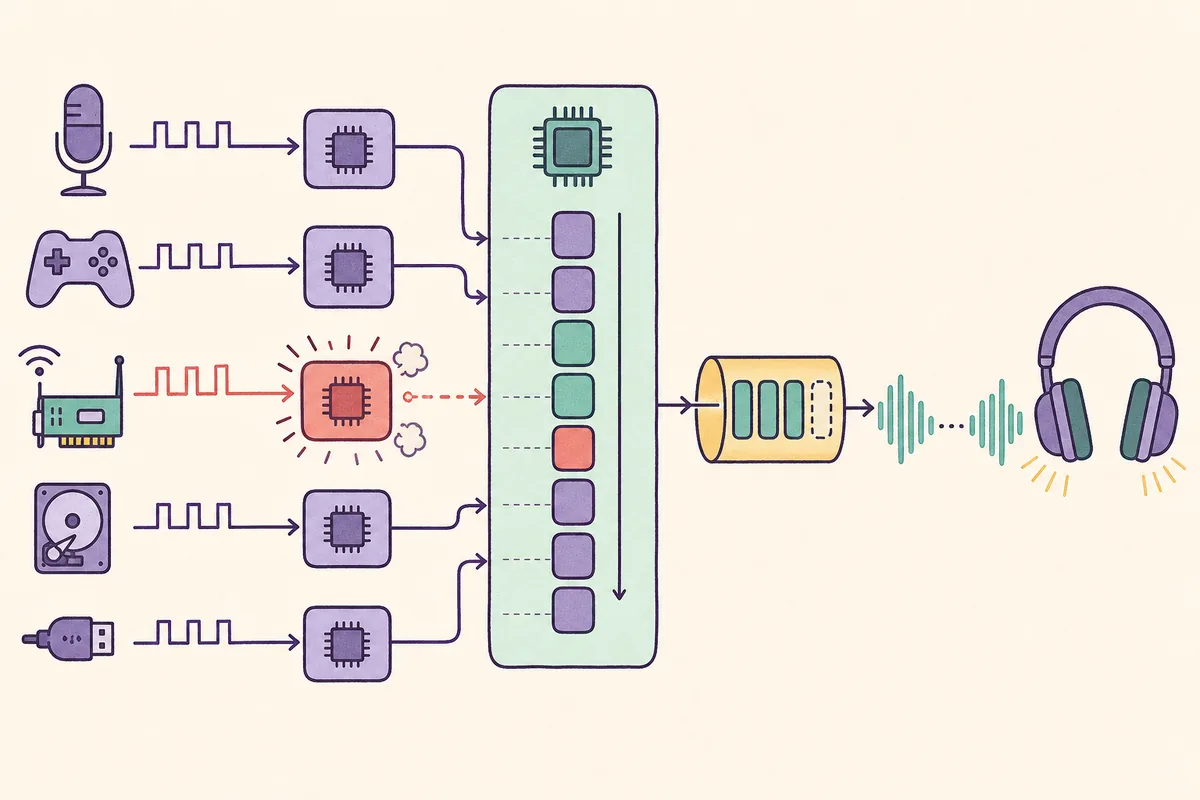
The diagram shows why an unrelated device can damage audio timing: microphone, controller, network, storage and USB drivers all compete for short windows of processor service before the audio buffer deadline. The loudest offender is not necessarily the audio driver itself.
Use a safe fix order for high DPC latency
Start with reversible, evidence-based changes. Install current chipset and device drivers from the PC, motherboard or device manufacturer. For a problem that began after an update, compare a known-good older driver rather than assuming newest is always best. Test network and GPU drivers separately, and use a clean installation option only when the vendor provides one.
Next check device power management, USB selective behavior, wireless adapters, overlays, hardware monitoring tools and unnecessary virtual audio or VPN filters. A temporary high-performance power mode is a diagnostic comparison, not a permanent requirement. BIOS or firmware updates may help documented platform issues, but follow the manufacturer instructions and never flash firmware merely because LatencyMon showed one spike.
- Update platform drivers
Install OEM chipset, network, storage and audio packages; restart and retest.
- Compare the suspected driver
Update or roll back the one driver family linked to repeated spikes.
- Remove filters and overlays
Test VPN filters, RGB or monitoring tools, game overlays and unused virtual audio devices.
- Test device power settings
Temporarily disable power saving for the suspected adapter or USB path.
- Escalate carefully
Use BIOS, firmware or hardware replacement only with repeatable evidence and a rollback plan.
Verify the fix and know when DPC is not the cause
A fix is credible only when the original workload runs without the symptom and a second LatencyMon session improves the repeated driver pattern. Test after a cold boot and after sleep or wake if that state used to trigger the problem. Keep the final driver version and configuration notes so a future Windows or vendor update can be compared quickly.
If DPC results are stable but audio remains delayed, return to the signal path. Compare wired and Bluetooth output, increase a DAW buffer, bypass heavy plugins, match sample rates and run the browser audio latency test. If the machine freezes, logs hardware errors, loses storage devices or crashes, stop optimization experiments and investigate hardware, firmware and system reliability first.
The same workload passes repeatedly and the former driver spike no longer tracks the symptom.
The spike moved to another driver or disappeared only because the workload changed.
LatencyMon is stable but delay exists only in Bluetooth, one app or one capture path.
Crashes, device disconnects or hardware errors require vendor-level diagnosis.
Check whether the remaining problem is playback delay
After driver spikes are under control, use the browser test to compare wired, Bluetooth and speaker paths.
High DPC latency FAQ
What causes high DPC latency?
Common causes include network, GPU, storage, USB, ACPI or device-framework drivers, plus firmware, power-management and filter-driver interactions. Confirm the family under the workload that causes the symptom.
Is nvlddmkm.sys high DPC latency always an NVIDIA driver bug?
No. It points to the NVIDIA graphics path, but display audio, overlays, power states, another driver or a particular version interaction may be involved.
How long should LatencyMon run?
Run it long enough to reproduce the real problem, usually 10–15 minutes or the duration needed to trigger a dropout.
Should I disable devices permanently?
Use temporary disable tests only for nonessential devices. Prefer a correct driver, firmware or configuration fix.
Can high DPC latency increase normal audio delay?
It mainly threatens real-time scheduling and causes clicks or dropouts. Bluetooth buffering, DAW settings and signal-path delay should be measured separately.
Technical references
- Microsoft Learn: Introduction to DPCsMicrosoft explains how Deferred Procedure Calls are used by Windows drivers.
- Resplendence LatencyMonOfficial page for the real-time audio suitability and driver latency analyzer used in this workflow.