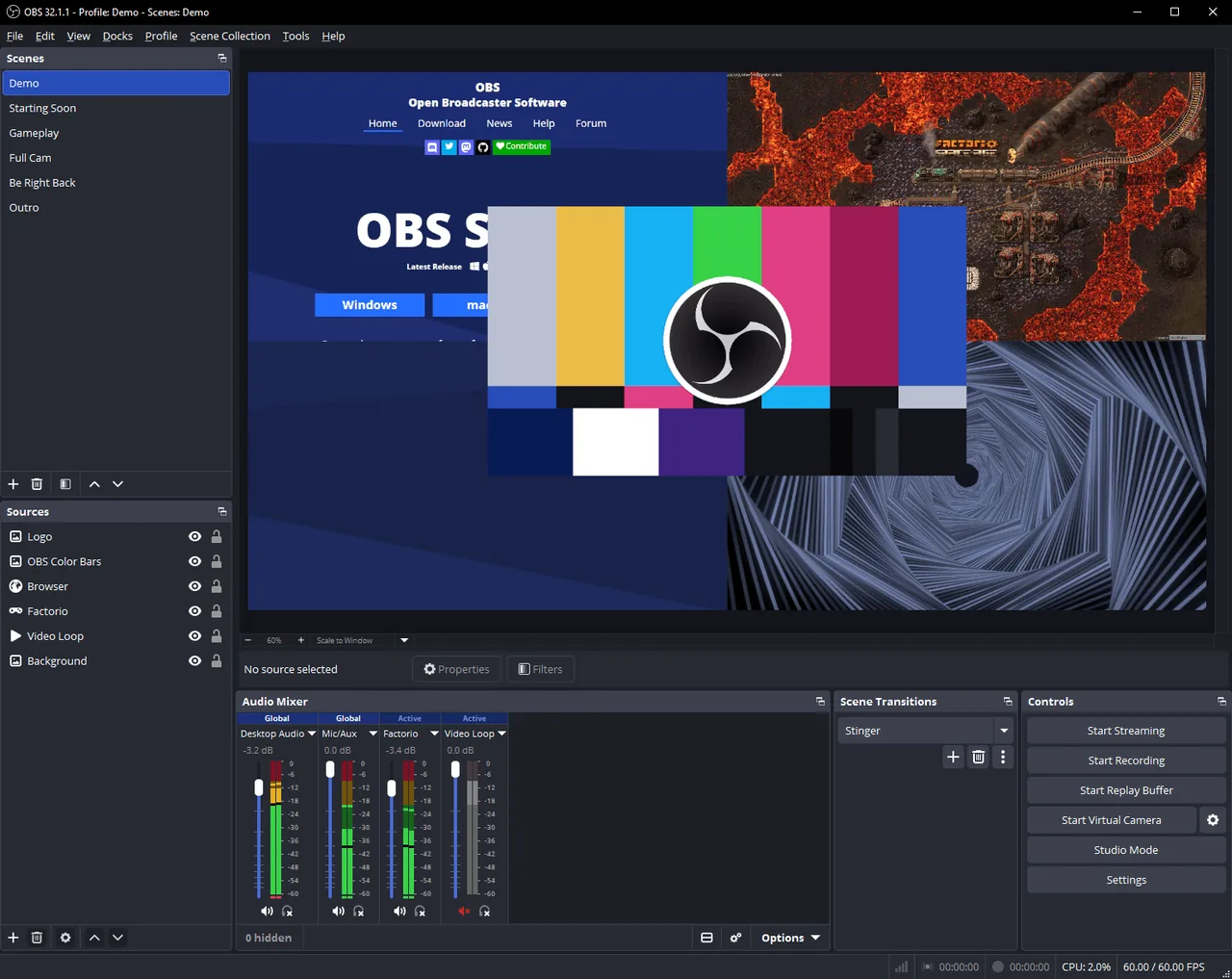
For a constant OBS audio delay, record a sharp visual and sound event, measure the gap, open Audio Mixer → Advanced Audio Properties, and set Sync Offset on the delayed source. If the gap grows, do not keep increasing the offset: investigate capture-card buffering, clock/sample-rate mismatch, USB stability, drivers, and duplicate monitoring first.
Use a measured Sync Offset. Retest after every change.
Treat it as buffering or clock drift, not a simple offset.
Check Audio Monitoring and avoid listening to two copies of the source.
Match that source's sample rate, USB path, buffering and driver settings.
OBS Audio Delay Fix: Capture Card, Sync Offset and Drift
Do not start by guessing a Sync Offset. Record a short test with a visible clap, controller click, menu sound, or other sharp event. Watch the file from the beginning and again near the end. If the gap stays almost identical, you have a fixed offset. If the sound moves farther behind the picture, you have desync over time.
A fixed delay commonly comes from the capture device's video processing path. OBS can compensate by delaying the earlier stream until both arrive together. Drift is different: two devices or software paths are not staying on the same clock, or a buffer is repeatedly growing. Adding a larger offset may make the first minute look correct while the final minutes become worse.
Also separate recorded delay from monitoring delay. If the recording is synchronized but you hear an echo while live, the problem is usually Audio Monitoring, Windows Listen to this device, or duplicate desktop/capture audio—not the recorded Sync Offset.
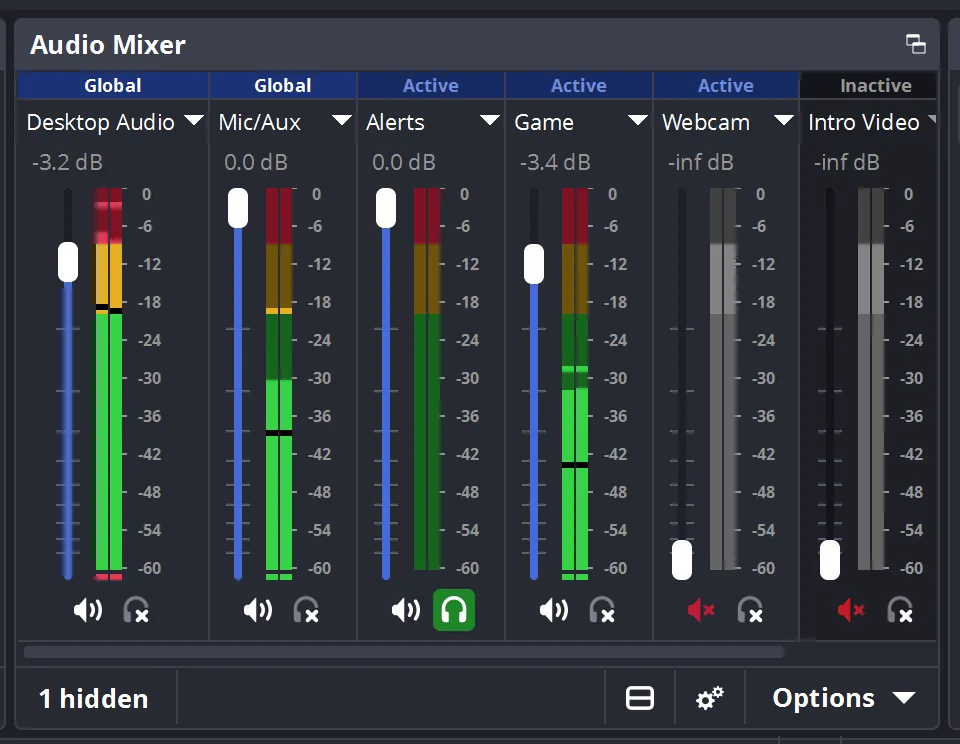
Measure the gap and use Sync Offset on the source that arrives early or late.
Investigate capture buffering, USB bandwidth, sample rates, drivers and source restarts.
Change the monitoring device or mode; do not automatically change the recording offset.
Mute one route if both Desktop Audio and the capture source contain the same game sound.
Measure the OBS capture card audio delay before changing settings
A repeatable measurement prevents endless trial and error. Create a short local recording at the same resolution, frame rate and audio routing used for the real stream. Produce a sharp visual and audio event, then inspect whether sound is early or late. Repeat the test at least three times so one bad click does not become your permanent setting.
You can also use the site's Audio Sync Test on the captured device, display or browser source to estimate the direction and size of an A/V mismatch. The browser result is a practical comparison aid, not laboratory certification, so confirm the final value in an OBS recording.
Write down the source name, connection, resolution, FPS, sample rate and measured gap. If you later change the capture card, console output mode, USB port or OBS audio device, retest instead of assuming the old number still applies.
- Create a sharp sync event
Use a clap, button click, menu beep or test pattern where the visual moment is easy to identify.
- Record 20–30 seconds
Use the same scene, frame rate and audio sources as the real stream.
- Check the beginning and end
A constant gap is an offset; a changing gap is drift.
- Measure in milliseconds
Estimate the difference frame by frame or compare several small offset changes.
- Repeat and use the median
Do not lock the setting from a single noisy test.
Set Sync Offset in OBS Advanced Audio Properties
In the Audio Mixer, open the options menu or gear control and choose Advanced Audio Properties. Find the capture card audio source, then enter the measured value in the Sync Offset field. OBS uses milliseconds, so a value of 150 means 0.15 seconds.
The sign and source choice depend on what arrives first. In many capture-card setups, video processing makes the picture late while audio arrives earlier; delaying that audio with a positive Sync Offset can align it. If your sound is already behind the picture, do not blindly add more delay. Recheck routing and determine whether another source can be delayed instead. OBS cannot make a late source arrive earlier; it can only delay other streams to match it.
Change one setting at a time in small steps, record again, and compare. Large random values hide the real cause and make later troubleshooting harder. Keep the final number in your scene notes so you can restore it after rebuilding a profile.
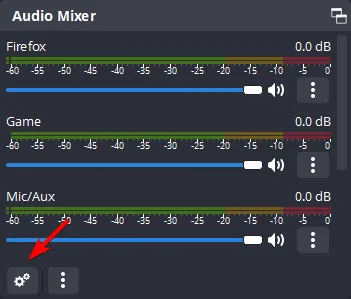
- Open Advanced Audio Properties
Use the Audio Mixer options control, not the general Settings window.
- Find the exact source
Choose the capture card audio source rather than Mic/Aux or Desktop Audio unless testing proves otherwise.
- Enter the measured milliseconds
Start with the repeatable gap, not a number copied from another setup.
- Make a fresh recording
Verify both the start and the end before going live.
Fix OBS audio delay that grows during a stream
When audio slowly falls behind, remove the condition that is building the delay. Open the capture source properties and test the buffering option when your device exposes it. Several OBS forum cases report that disabling buffering stops gradual delay, while a fixed offset remains useful only for the small stable gap left afterward.
Set OBS and connected devices to one sample rate, commonly 48 kHz for video workflows. Check OBS Settings → Audio, the Windows/macOS device format, capture-card software and any virtual mixer. A 44.1/48 kHz mismatch does not guarantee drift, but it adds resampling and makes diagnosis less predictable.
Connect the capture card directly to a suitable USB port, avoid overloaded hubs, update the capture driver or firmware from the manufacturer, and close duplicate capture utilities. If drift appears only after sleep, scene switching or long uptime, deactivate and reactivate the source or restart OBS before a critical stream while you isolate the underlying trigger.
For persistent problems, make a clean scene collection with only the capture card and one audio path. If the clean scene stays synchronized, add filters, virtual cables, monitoring and plugins back one at a time. This is faster than changing several latency controls at once.
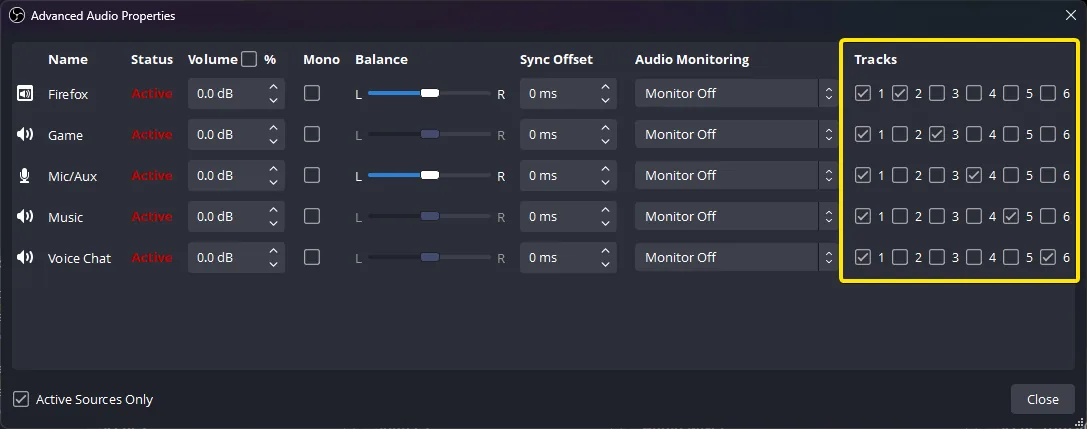
Test the capture source's buffering option when drift grows over time.
Use one rate across OBS, the operating system, capture software and virtual audio devices.
Prefer a direct high-speed port and remove competing high-bandwidth devices during testing.
Deactivate/reactivate the source to confirm whether the delay is accumulating in that capture path.
Match the symptom to the right OBS audio fix
Use the pattern below to avoid applying a constant offset to every problem. A single recording can contain more than one issue, so start with the simplest scene and one audio route.
| Symptom | Likely cause | Best first action | Use Sync Offset? |
|---|---|---|---|
| Same gap from start to finish | Stable capture or processing delay | Measure the gap and enter a small repeatable offset | Yes |
| Delay grows during a long stream | Buffering, clock drift, USB or driver instability | Fix buffering/sample-rate/device stability and retest | Not as the main fix |
| Recording is correct but monitoring echoes | Two monitoring paths or duplicate audio | Disable one monitor/listen route | Usually no |
| Only capture card audio is late | Capture source path or device driver | Test direct USB, source reset and driver/firmware | Only after the delay is stable |
| Desktop and capture game audio both play | Duplicate routing | Mute one source and keep one clean path | No |
| Delay changes after scene switching | Source activation or filter/plugin state | Test a clean scene and reactivate the source | Only after stability returns |
Does this OBS audio delay fix apply to OBS Studio 32.2.1?
Yes. The official OBS download and release pages were checked on August 12, 2026. OBS Studio 32.2.1 is the current stable version shown there, released July 24, 2026. The Audio Mixer and Advanced Audio Properties workflow remains available, although menu labels can vary by operating system and source type.
Download OBS only from the official OBS download page or the official release repository. This guide does not claim an installer mirror, fixed file size, or unofficial direct link.
OBS Studio 32.2.1, released July 24, 2026.
Official download options cover Windows 10/11, macOS 12 or newer, and Linux.
Not claimed because the inspected official page did not expose one stable installer size.
Use obsproject.com or the official obsproject/obs-studio release page.
Verify the fix before your next stream
After changing a setting, make a local recording longer than the session that originally exposed the problem. Check a sync event near the beginning, middle and end. Confirm the recording itself, not only what you hear through monitoring. Then test the real platform with the same encoder, FPS, resolution and audio routes.
Save a note with the working Sync Offset, OBS version, capture-card model, driver/firmware version, USB port and sample rate. If the issue returns after an update, this baseline helps you identify what changed instead of rebuilding the setup from memory.
For broader background, review what audio latency means. If wireless monitoring is involved, compare it with the Bluetooth Latency Test. For microphone monitoring delay, use the Mic Latency Test.
- Record longer than the failure window
A five-minute test cannot prove that a thirty-minute drift problem is gone.
- Check start, middle and end
Confirm both fixed alignment and long-term stability.
- Verify the recording and the stream
Monitoring can be late even when the recorded file is correct.
- Change one variable at a time
Keep notes so every improvement or regression has a clear cause.
Check the A/V gap with a repeatable test
Use the flash-and-beep test to estimate the direction of the mismatch, then confirm the final Sync Offset in an OBS recording.
OBS Audio Delay FAQ
What Sync Offset should I use for OBS audio delay?
Use the smallest repeatable value measured in your own recording. There is no universal capture-card offset because video mode, device, driver, USB path and audio routing change the delay.
Why does OBS audio delay grow during a stream?
Growing OBS audio desync usually points to buffering, clock differences, sample-rate conversion, USB instability, drivers or source activation. A constant Sync Offset cannot remove an accumulating delay.
How do I fix audio delay on an OBS capture card?
Record a sharp sync event, decide whether the delay is fixed or drifting, check the capture source path, then apply a measured Sync Offset only when the gap stays stable.
What ms should I put for OBS audio delay?
Do not copy a universal number. Measure the beginning and end of your own recording, repeat it several times, and use the smallest stable value.
How do I fix game audio delay on OBS?
Check whether game sound is duplicated through Desktop Audio and the capture source, test the capture-card path directly, match sample rates, and only then correct a stable offset.
Why is capture-card audio delayed but desktop audio is not?
The capture card has its own hardware, USB and driver path. Test that source separately and avoid adding the desktop route twice.
Can OBS audio monitoring create an echo without changing the recording?
Yes. OBS monitoring plus Windows/macOS listening or a capture utility can produce two audible copies. Check the recorded file before changing Sync Offset.
Does updating OBS automatically fix capture-card audio delay?
Not necessarily. Updates may fix bugs, but stable hardware delay and drift still require measurement and a check of the capture path.
OBS sources checked for this guide
- OBS official download pageStable version and supported platform verification.
- OBS Studio 32.2.1 releaseOfficial release date and change log.
- OBS multiple audio track guideOfficial Audio Mixer and Advanced Audio Properties screenshots.
- OBS forum capture-card drift caseCommunity troubleshooting context for buffering-related drift; treated as user-reported evidence.