
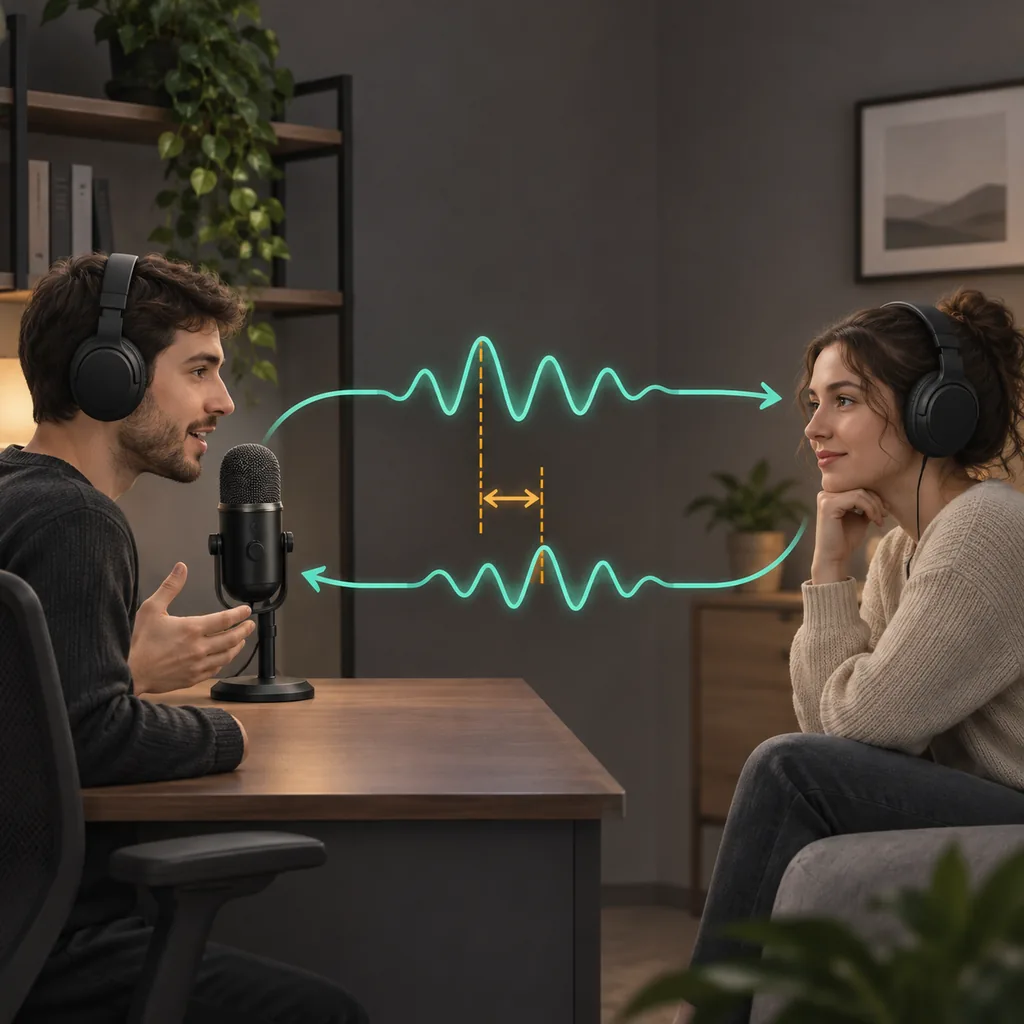
For Discord audio delay, identify whether all voices, one person, or only shared-screen sound is late. Compare Voice Activity with Push to Talk, confirm the input and output devices, and repeat a short call in another app. A steady offset suggests a device or processing path; changing delay with gaps or dropouts points more toward the connection.
Discord audio delay: identify who hears it
The direction narrows the search. If others hear your words late, check your microphone, Discord input mode, and outgoing route. If all remote speakers sound late to you, compare the output device and headset with another app. If only one person is affected, ask another listener before changing your own setup.
Keep shared-screen audio separate from voice chat: streamed media has its own source and capture path. When speech is in time but a clip is not, microphone sensitivity is unlikely to help. Discord's Voice and Video Troubleshooting Guide lists device, voice-setting, permission, and screen-share checks separately.
| What you notice | First path to check | Useful comparison |
|---|---|---|
| Others hear your words late | Microphone, input mode, outgoing route | Compare with a second listener |
| You hear everyone late | Output device, headset, local playback | Try wired audio and another app |
| One person sounds late | That person's mic or connection | Ask another listener to compare |
| Only shared media is late | Source application and capture | Compare with a local recording |
Run a repeatable Discord voice delay test
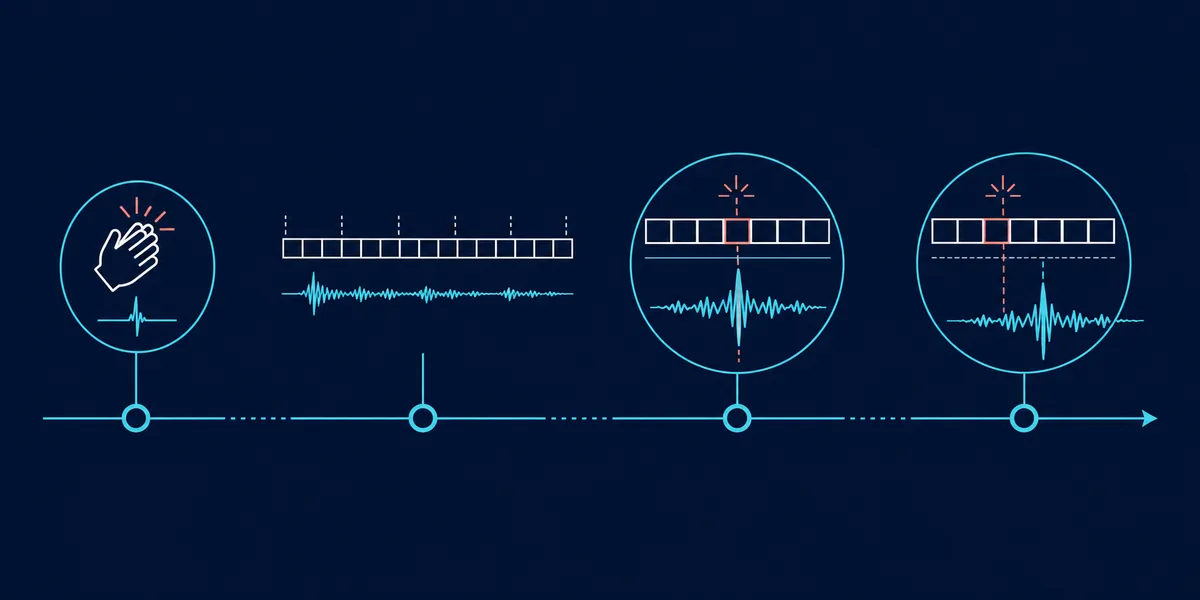
Use the same short phrase, speakers, and devices before and after a change. Ask a remote listener when the first word arrives, then repeat with a second listener if possible. This is a comparison, not a millisecond-accurate measurement; it shows whether a change helps, hurts, or makes no difference.
Compare Discord with a local recording or another calling app while keeping devices fixed. If every app is late, inspect the computer and headset path; if only Discord differs, check its input mode and device selection. The audio delay testing guide covers steady offsets versus changing delay. The sync test measures local playback, not Discord's network.
- Record the symptom
Note who hears it, which device is used, and whether speech or shared audio is affected.
- Repeat one phrase
Keep the speakers, mic, output, and channel fixed so one variable changes.
- Compare one path
Try another app or local recording; test wired audio only after noting the baseline.
- Keep or undo
Restore a setting that does not help before testing another one.
Check Voice Activity and Push to Talk
Voice Activity detects speech before opening the microphone, so a quiet first syllable may be clipped or seem late. Discord documents about 200 ms of Voice Activity detection delay. This describes the mode; it does not mean every call has a fixed 200 ms offset.
For comparison, switch temporarily to Push to Talk and hold the key before speaking. Discord says transmission starts without that detection delay while the key is held; release delay controls how long the mic stays open afterward. Push to Talk does not remove network travel, output buffering, or device delay.
With Voice Activity, check that input sensitivity does not gate quiet speech. Test noise suppression or echo cancellation only if the symptom suggests processing; behavior varies by device and room. Change one control and restore it if speech worsens. See Discord's official input-mode explanation.
Hands-free, but detection can clip a quiet first sound or high-threshold speech.
Compare a late first syllable by holding the key before speech; note release delay.
Check the microphone, headset, and system audio path
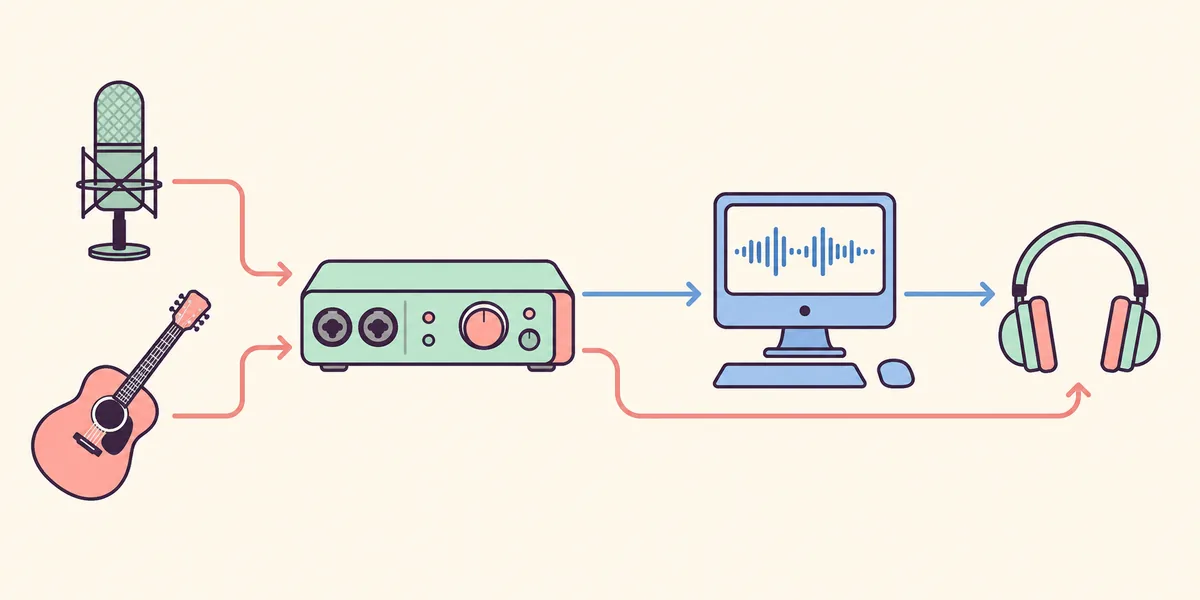
Confirm Discord's selected input and output devices; automatic selection can change when a headset connects. Speak into the chosen mic and watch its input indicator, then listen through the chosen output. A wrong device or duplicate monitoring route can be mistaken for lag.
Compare a wired headset or separate USB mic. If only Bluetooth is late, its wireless output may be limiting; opening its mic can also change headset mode. See the Bluetooth delay guide. Close other mic-monitoring apps for the test.
Do not change sample rates or install driver tools at random. If Discord and local playback both crackle or pause, investigate the computer path with the high DPC latency guide.
Test the connection without guessing
A steady offset and an unstable call are different. Similar delay each time can involve buffering or device processing; delay that grows, gaps, or changes during uploads is more consistent with congestion, packet loss, or jitter. Peak speed alone does not describe call stability.
Compare wired Ethernet with Wi-Fi, pause large uploads, and ask another participant whether they hear the same speaker late. If one person is affected, changing your whole client may not help. If everyone has trouble, note whether it tracks the network or call location before resetting Discord.
Change one condition at a time. Faster internet, a VPN, codec setting, or server move cannot be promised to fix every delay; each changes a different part of the route. Undo a test that makes the call less stable.
Retest and keep only changes that help
Repeat the same phrase with the same listeners and devices. Note whether the first syllable improved and whether the delay stayed steady. With Push to Talk, test the start and end; with a device change, check for echo or clipping.
Keep the device names, input mode, and useful change in a short note. Restore controls that did not help. If several apps are affected, continue with the computer path; if only Discord differs, return to its voice and video checks. No setting can guarantee zero latency.
Compare a known audio path before the next call
Use the site's audio test to compare local playback and device changes. It does not measure the Discord network route, so pair it with a second listener for voice chat.
Discord Audio Delay FAQ
Why does Discord Voice Activity make my first word late?
Voice Activity detects speech before opening the mic. Discord documents about 200 ms of detection delay; a quiet first sound may also be gated. Compare Push to Talk while holding the key before speaking.
Does Push to Talk fix every Discord audio delay?
No. It avoids Voice Activity detection delay while held, but not network travel, output buffering, Bluetooth delay, or shared-screen source delay.
Why does only one Discord user sound delayed?
Their microphone, input mode, connection, or device path may differ. Ask another listener whether the same speaker is late before changing your output setup.
Can faster internet remove Discord voice delay?
Not necessarily. Peak bandwidth does not reveal jitter, packet loss, device delay, or buffering. Compare wired and Wi-Fi and note whether timing stays steady.
Why is screen-share audio delayed while voice chat is fine?
Screen-share sound has a separate source and capture path. Check the local clip, then ask another viewer to compare it.
Discord voice and video documentation
- Discord Support: Voice Input Modes 101Official details about Voice Activity, Push to Talk, and the release delay control.
- Discord Support: Voice and Video Troubleshooting GuideOfficial checks for audio devices, voice settings, permissions, and screen sharing.