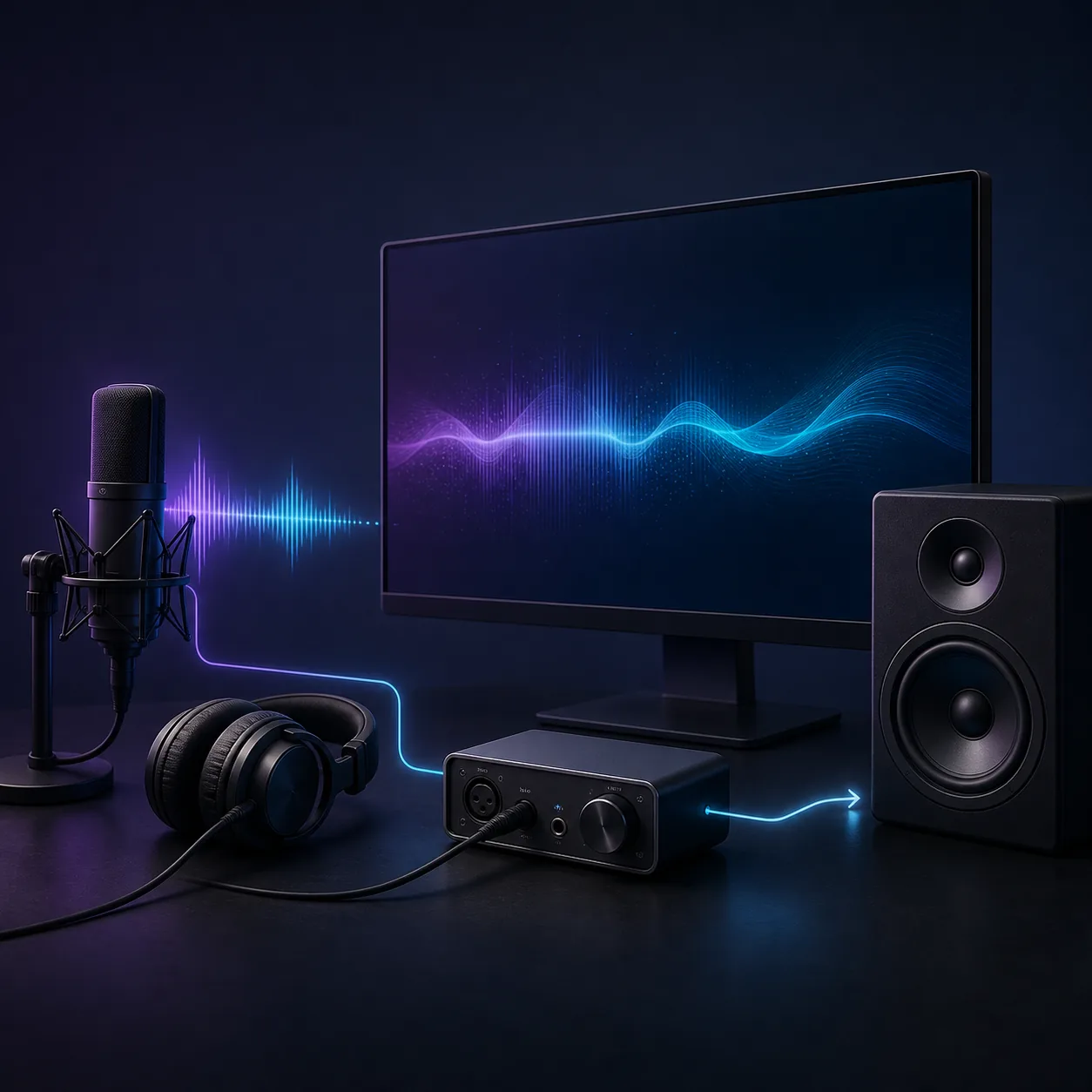
To test audio delay on a PC, use a fixed visual cue and a short sound, test one output path at a time, repeat at least five trials, and compare the average plus the spread. Start with wired headphones or speakers as a baseline, then test Bluetooth, a TV or a microphone loopback separately. Browser results are practical estimates rather than certified lab measurements.
A strong baseline for monitoring, rhythm games and other timing-sensitive use.
Many people can use it comfortably for calls, casual games and normal playback.
Speech, video and live monitoring may begin to feel detached from the action.
Echo, late feedback and obvious lip-sync errors are likely, especially during monitoring.
Prepare a repeatable audio delay test
A delay number is useful only when the test conditions are clear. Close music players, games and call apps that may claim the same audio device. Set the Windows output you actually want to investigate, keep the browser at a normal volume, and avoid changing Bluetooth modes, sample rates or enhancements halfway through the test.
Use the shortest practical chain first: PC to wired headphones or speakers. That result is your control. If the wired baseline feels immediate but the wireless result is late, the problem is probably in the wireless path rather than the browser itself. If every path is late, inspect the operating-system mix, driver mode, buffer or display pipeline. The audio latency guide explains the difference between output, input and round-trip delay.
For a clean comparison, write down the device name, connection type, browser, volume level and any special mode such as gaming, low-latency or direct monitoring. A simple note prevents you from comparing a wired result at the desktop with a Bluetooth result inside a game and then treating the numbers as if they came from the same path.
Disable or unplug competing outputs so Windows cannot silently move the test to another device.
Begin with wired headphones or speakers before testing Bluetooth, a TV, a soundbar or a USB path.
Background sound makes a speaker or microphone test harder to repeat and can hide a small offset.
Use a flash-and-beep method on your PC
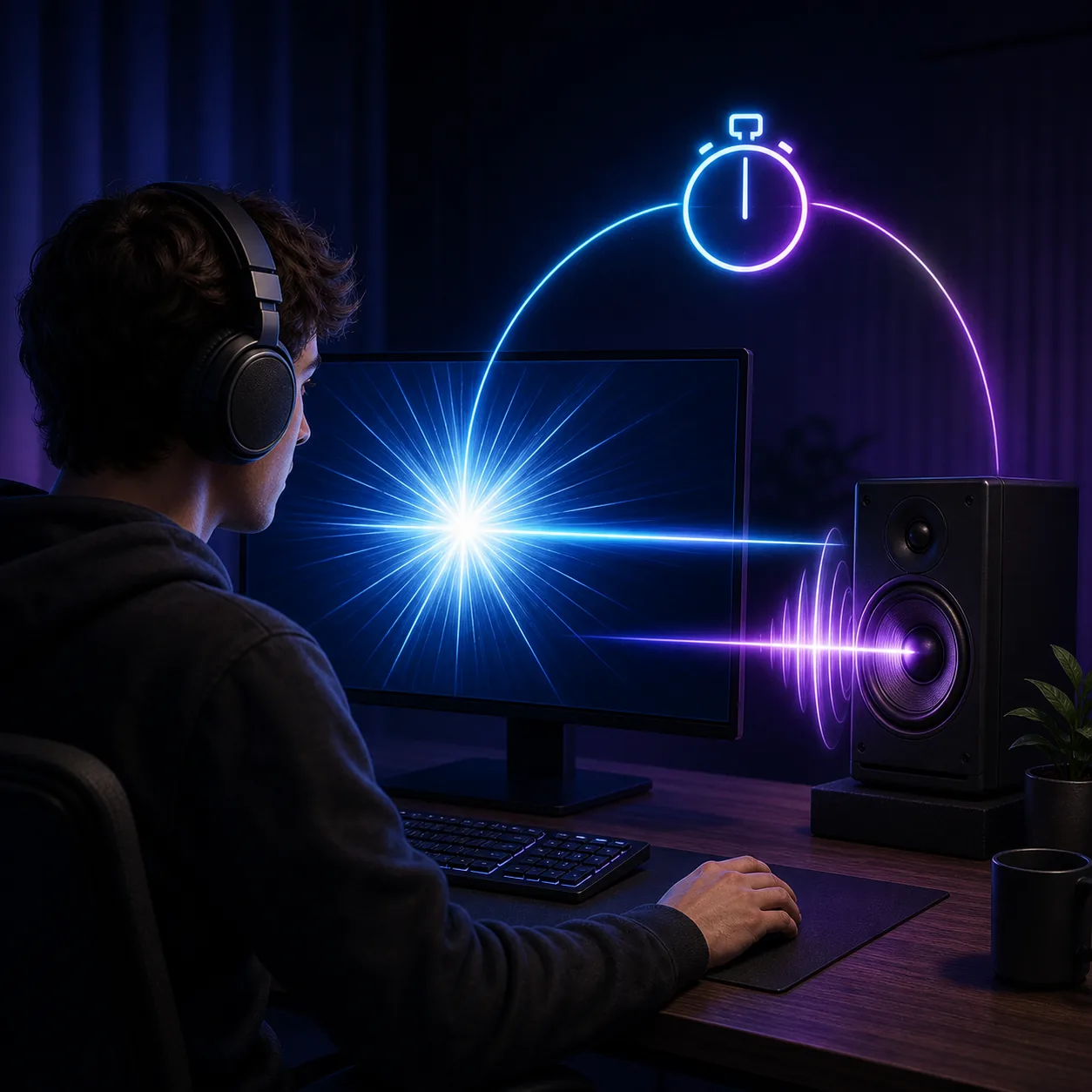
The easiest online method is to compare a visual event with a short audio event. A screen flash happens at a known moment, while the beep travels through your selected audio path. The difference you perceive is an estimate of audio delay relative to the screen and browser schedule. It is not the same as a certified electrical measurement, but it is useful for comparing devices under identical conditions.
Open the audio sync test for a visual-and-audio offset check, or start with the audio latency test if you want a broader response and device comparison. Keep the same screen refresh mode and output volume while repeating the test.
- Select the output
Choose the exact headphones, speakers, TV or interface you want to test. Avoid testing through a virtual mixer unless that is the path you use every day.
- Set a comfortable level
Use a level that is easy to hear but not loud. Excessive volume can make the sound seem earlier and can encourage inconsistent reactions.
- Run several trials
Complete at least five trials, and preferably ten for a device comparison. Do not discard a result only because it is different; record the spread.
- Keep the same path
Do not switch from wired to Bluetooth, change a codec mode or move from headphones to speakers until that group of trials is complete.
- Record the average
Write down the average delay and the lowest and highest readings. A stable average is more useful than a single impressive number.
- Repeat after one change
Change one setting, then run the same trials again. This is how you tell whether a fix helped or simply changed the timing of your reaction.
Read the audio delay result in milliseconds
Milliseconds are a way to describe timing, not a universal pass/fail grade. A 35 ms output delay may be comfortable for a film but distracting when monitoring a microphone. A 70 ms delay may be acceptable for background music while still making a rhythm game or live instrument feel disconnected.
Look at consistency as well as the average. If five trials cluster around the same value, you have a useful baseline. If the readings jump widely, suspect browser scheduling, CPU load, Bluetooth retransmissions, microphone placement or human reaction time before blaming one driver. Browser tests estimate the user-visible path; they do not reveal every internal buffer separately.
| Observed result | What it usually suggests | Next check |
|---|---|---|
| Low and stable | The selected path is probably behaving consistently for this use. | Save it as a baseline and compare another device. |
| High and stable | A repeatable buffer, codec, display or processing delay is present. | Test wired output, disable extra processing and check the relevant device guide. |
| Low average, wide spread | The timing is changing between trials or the test is hard to hear. | Reduce background load, improve the listening setup and repeat. |
| Delay grows over time | Drift, buffering or a sync problem may be involved rather than one fixed offset. | Test the real app or player and check for drift, not only a one-time offset. |
Separate wired, Bluetooth and microphone delay
A PC can have several different audio delays at once. Wired headphone output, Bluetooth earbuds, a TV over HDMI and a microphone monitoring loop each include different buffers. Testing them as one category hides the useful clue. Change only the device path and keep the browser, content and test procedure fixed.
For headphones, compare a wired set with the same volume and content before testing wireless. The headphone latency test is useful for output comparisons, while the Bluetooth latency test isolates wireless lag. If you hear your own voice late, use the mic latency test because that is a round-trip problem: microphone input, processing and output all contribute.
A visual offset can also come from the display or video player. If the sound is early or late only in one application, compare a local file, a browser video and the same headphones outside that app. If the offset follows the device everywhere, investigate the device path. If it follows one player, inspect that player's audio offset or sync setting.
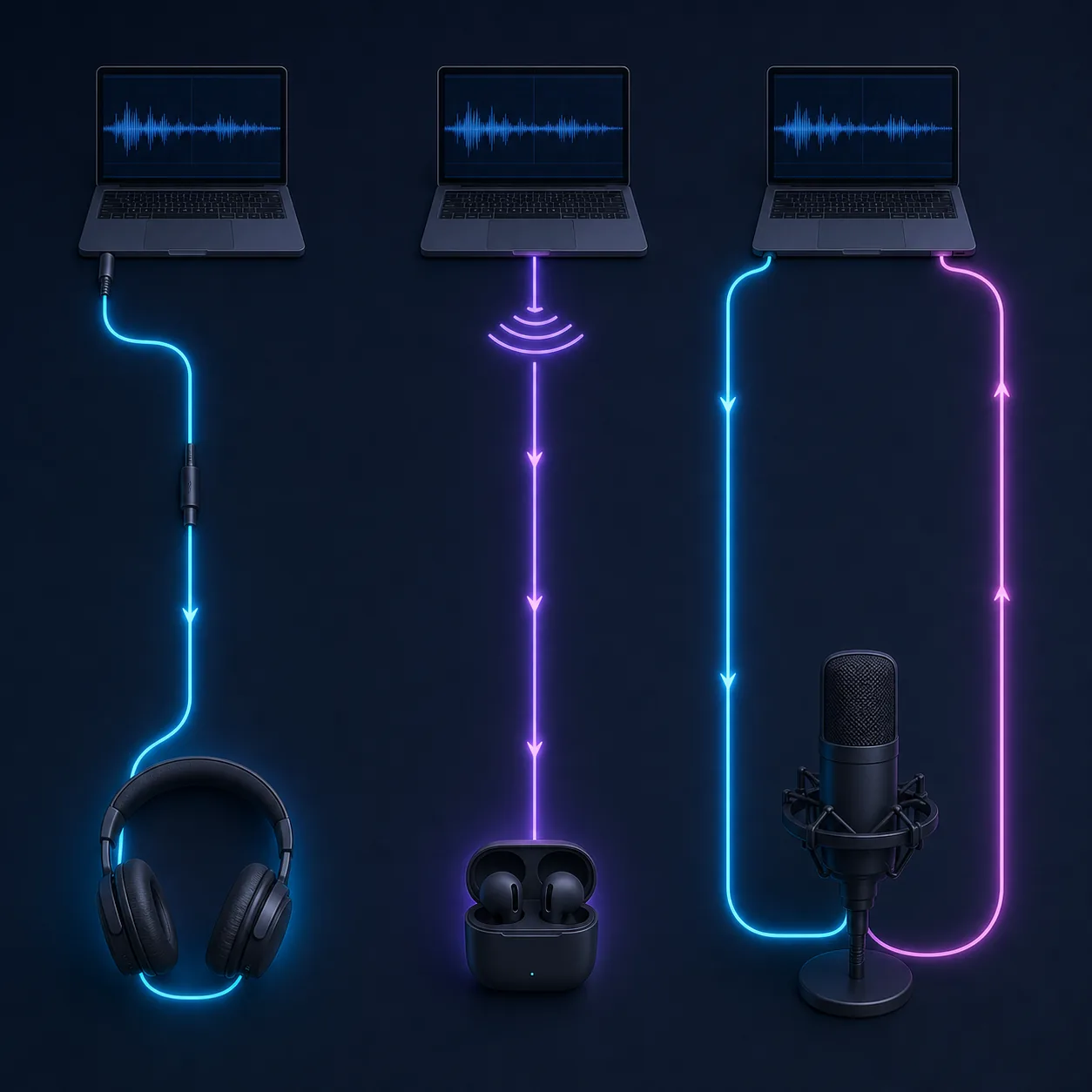
Use this as the control path. A stable wired result helps separate PC or application delay from wireless buffering.
Codec, earbuds, radio conditions and low-latency modes can change both average delay and consistency.
The microphone path is round trip. Direct monitoring can avoid software return delay, but compare it with the setup you actually record with.
Fix one cause, then retest the same path
Do not change five audio settings at once. Start with the least risky experiment: reconnect the device, select the intended output, close extra audio software and repeat the baseline. Then test one change such as disabling an enhancement, selecting a different driver mode, lowering a recording buffer or turning on a device's low-latency mode.
If the problem is specific to Windows 11, follow the symptom-first order in the Windows 11 audio latency guide. For an audio interface or DAW monitoring setup, use the audio interface latency guide. A fix is credible only when the same device, volume, browser and test count produce a better average without creating crackles or dropouts.
When lower latency creates glitches, raise the buffer one step and retest. The fastest setting is not automatically the best setting: a slightly higher but stable delay is often more usable than a low average with clicks, dropouts or timing that jumps around.
- Change one variable
Record the old setting before changing it, and avoid combining driver, sample-rate and enhancement changes in one experiment.
- Repeat the baseline
Use the same test page and the same number of trials so the before-and-after comparison is meaningful.
- Check for new artifacts
Listen for crackles, clipping, dropouts, echo or drift. A lower number with a damaged signal is not a successful fix.
- Keep the setting that fits the task
Choose a stable delay appropriate to recording, gaming, calls, video or casual listening instead of chasing one universal target.
Know what an online audio delay test can and cannot tell you
A browser test is excellent for a repeatable user-level comparison, but it is not a calibrated laboratory instrument. Browser scheduling, operating-system mixing, display refresh, device firmware, codec behavior, microphone placement and human judgment all affect the reading. Treat the result as an estimate and use the same conditions when comparing devices.
If you need a certified measurement for broadcast, product validation or detailed DAW compensation, use dedicated electrical or acoustic measurement equipment. For everyday troubleshooting, the practical goal is simpler: identify which path is late, quantify the change, and confirm that the fix does not introduce instability.
Compare a wired baseline with Bluetooth, headphones, speakers, a TV or a microphone monitoring path.
Do not compare results from different browsers, volumes, screen modes or test procedures as if they were one measurement.
Certification, product engineering and precise compensation require instruments designed for calibrated timing measurements.
Start with a repeatable baseline
Run the browser audio latency test first, then compare the exact device path that feels delayed.
Audio delay testing FAQ
How do I test audio delay on a PC?
Use a fixed visual cue and a short sound, select one output device, repeat at least five trials, and record the average plus the spread. Start with wired audio, then test Bluetooth or a microphone path separately.
Is an online audio delay test accurate?
It is useful for comparing the same setup under repeatable conditions, but it is an estimate. Browser scheduling, the operating system, device firmware, Bluetooth buffering and human timing can all affect the result.
What is a normal audio delay in milliseconds?
There is no single normal value for every task. Under 20 ms often feels immediate, 20–50 ms is workable for many uses, 50–100 ms is noticeable, and over 100 ms is commonly distracting for monitoring or lip sync.
Why is Bluetooth audio delayed but wired audio is not?
Bluetooth adds encoding, transmission and decoding buffers. Codec choice, earbuds, radio conditions and low-latency modes can change the delay, so compare Bluetooth with a wired baseline under the same test conditions.
How can I test microphone monitoring latency?
Use a microphone round-trip test and keep the microphone, speakers or headphones and monitoring software fixed. The result includes input, processing and output delay, so it is different from a simple headphone output test.
Why do my audio delay readings jump around?
Variable readings can come from browser scheduling, CPU load, Bluetooth retransmissions, room noise, microphone placement or inconsistent reactions. Reduce background load, keep the path fixed and repeat more trials before changing settings.
Technical references for audio delay testing
- Microsoft Learn: Low latency audioBackground on Windows audio paths and low-latency application behavior.
- Microsoft Support: Fix sound or audio problems in WindowsOfficial troubleshooting guidance for output selection, drivers, enhancements and services.
- MDN: AudioContext.baseLatencyBrowser API reference for the latency introduced by an audio context.