
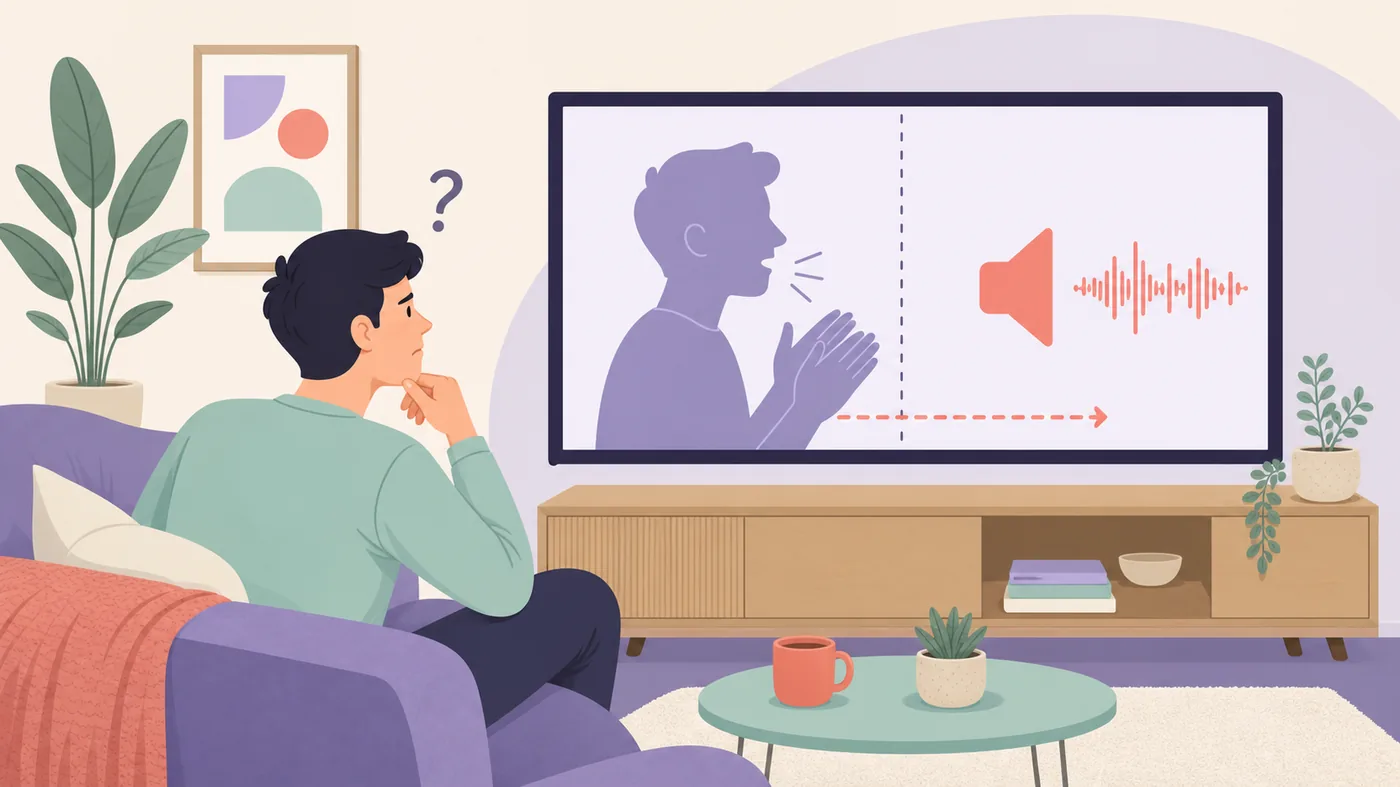
First decide whether the sound is late by a constant amount or whether the gap changes between scenes. Test the same spoken line or flash on the TV speaker, then on the soundbar or headset, and keep the source unchanged. Turn off extra audio processing, choose one output route, and use the TV or receiver lip-sync control only after the path is stable. If HDMI ARC, eARC, optical or Bluetooth adds the delay, change that connection or its format before applying a large offset. Finish by replaying the same clip from the beginning and checking the middle and end.
Speech is early or late by about the same amount from the start to the end of a clip.
The beginning is close but the mismatch grows during a long show, stream or recording.
Only one streaming service, console or input is wrong while other TV sources remain aligned.
TV speakers, HDMI and wireless outputs all show the same delay, so inspect TV processing first.
Is it a TV audio delay or a source problem?
A TV audio delay fix is easier when you name the boundary. A voice that is late on every input points toward the television's audio processing, an output mode or a connected device. A delay that appears only on a set-top box, console or one streaming app points to that source, its cable, or the way it handles surround audio. Do not change the TV offset until you know which case you have.
Use a short clip with a clear mouth movement, hand clap or impact. Watch it once through the built-in speakers and once through the device that normally sounds late. Keep the volume moderate and avoid judging from a Bluetooth headset while testing a wired soundbar. If the built-in speaker is aligned but the soundbar is late, the TV is not the only layer. If both are late, the source or TV processing is a better first suspect.
A constant gap is different from drift. If a line is about 120 milliseconds late at the beginning and still about 120 milliseconds late near the end, a small lip-sync adjustment may work. If the gap grows or resets after a seek, investigate clock, buffering or format behavior instead of entering a bigger number. The audio latency guide explains the general difference; this page keeps the focus on television and external audio paths.
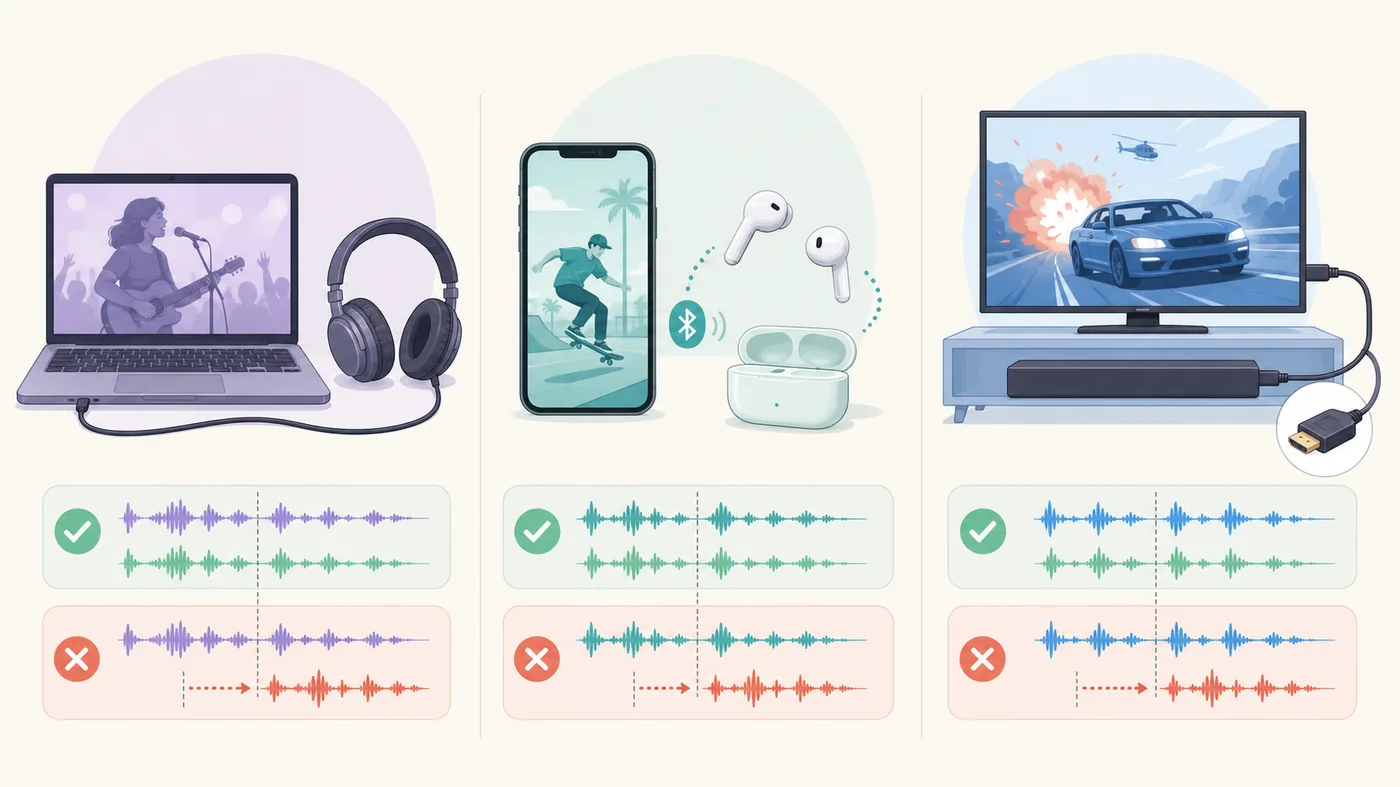
| What you observe | Likely boundary | First check |
|---|---|---|
| TV speaker and soundbar are both late | Source or TV processing | Try another input and temporarily disable surround or enhancement modes. |
| Only the soundbar is late | ARC/eARC, receiver or soundbar buffer | Compare TV speakers, then test PCM or a direct connection. |
| Only one box or app is late | Source decode or cable path | Repeat with a second app, HDMI input or local file. |
| The gap grows over time | Drift, buffering or clock mismatch | Check the beginning, middle and end before changing an offset. |
Test the real TV path before changing settings
Use the same source, cable, TV input, audio output and picture mode that you use when the problem is noticeable. A browser flash-and-beep check can provide a repeatable reference, but it does not reproduce every soundbar buffer or streaming-box decoder. Start with the Audio Sync Test if you need a consistent visual and audio marker, then repeat the observation with a real show, game or local clip.
Write down the direction of the error. If lips move first and the voice arrives later, the audio path is late. If the voice arrives before the lips, the display or picture processing may be slower. A television's Game Mode can reduce picture processing, while a soundbar's surround, voice enhancement or virtualizer can add audio processing. Make one change, replay the same marker and record whether the gap became smaller, larger or unchanged.
Do not compare an HDMI source with a phone connected by Bluetooth and call the difference a TV measurement. The codec, radio conditions, display mode and content decoder are different. For a reliable comparison, keep the video and marker identical and switch only the output branch. Five repeated observations on one path are more useful than a single precise-looking number from an unrelated path.
- Choose a sharp reference
Use a close-up word, clap, drum hit or flash that is easy to spot in both picture and sound.
- Check TV speakers
Record whether the built-in speaker is early, late or aligned before connecting the external device.
- Switch one output
Test the soundbar, receiver, optical output or Bluetooth headset without changing the source clip.
- Repeat three points
Check the beginning, middle and end of a longer clip to separate a fixed offset from drift or buffering.
- Log the result
Write down the connection, audio format, picture mode and setting changed so you can undo a bad adjustment.
Soundbar, ARC and eARC checks
A soundbar often receives audio after the TV has already decoded the picture. HDMI ARC or eARC, an AV receiver, a wireless rear-speaker link and the soundbar's own effects can each add a small buffer. Start by comparing the TV speaker and the soundbar with the same source. If the TV speaker is aligned and the bar is late, the useful TV audio delay fix is in the external path, not a global browser setting.
Check whether the TV is set to pass through, decode or convert the incoming format. Dolby, DTS, multichannel PCM and automatic modes can follow different processing paths. A temporary PCM or stereo test is useful because it removes one variable; it is not a promise that stereo is the best final setting. If PCM removes the delay, update the soundbar or receiver firmware and test passthrough again before choosing a permanent compromise.
Use the soundbar's own audio-sync control only after the connection is stable. Apply a small change, replay the same dialogue and check another source. If the bar has a game, movie or voice mode, disable extra modes during diagnosis. A large offset can hide one scene while making another wrong, especially when the source switches between stereo and surround.
| Connection | Useful isolation test | What the result means |
|---|---|---|
| HDMI ARC/eARC | Compare TV speaker with PCM or stereo output | A change points to format conversion, passthrough or the ARC device. |
| Optical | Use the same source and disable soundbar effects | A stable delay suggests the bar's processing rather than the HDMI handshake. |
| AV receiver | Bypass the receiver for one test | If direct TV audio is aligned, receiver video or audio processing needs review. |
| Wireless rear speakers | Test the front soundbar alone | A changing gap can be a wireless link or speaker-group buffer. |
Note the original output mode and soundbar delay before changing them.
Use PCM or stereo only as an isolation test, then decide whether surround is worth the extra processing.
Firmware and HDMI handshake fixes can remove a delay that an offset cannot correct cleanly.
TV picture and sound settings that affect lip sync
Menu names differ by brand, but the controls usually belong to three groups: audio delay or lip sync, digital audio output, and picture processing. Use the TV's own speaker as the reference, then inspect the setting for the external output. A positive audio delay value normally makes sound later; some menus use a slider or a word such as sync, while others expose milliseconds. Read the on-screen direction instead of assuming the sign.
Turn off extra processing for one test: virtual surround, dialogue enhancement, volume leveling, spatial audio and automatic room correction. These features can be useful after the timing is stable, but they make it harder to identify the layer that is late. If the TV has Game Mode or a low-latency picture mode, compare it with the normal picture preset because a slow display pipeline can make sound appear early even when the audio device is on time.
Digital output options are equally important. Auto, passthrough, PCM and bitstream may use different decoders in the TV or receiver. Test the simplest compatible option, record the result and then restore the format you need. Never assume that a faster network fixes a local TV audio delay: internet latency affects the stream, while TV decoding and output buffers happen after the data arrives.
- Start at zero
Return the TV and soundbar sync controls to their baseline before making a measured change.
- Disable enhancements
Temporarily turn off surround virtualization, voice modes, leveling and spatial processing.
- Try a simple output
Use PCM or stereo for one source to see whether format conversion is creating the delay.
- Compare picture modes
Check Game or low-latency mode against the normal preset when audio sounds early.
- Apply the smallest correction
Change the sync value in small steps, then verify a second source before keeping it.
HDMI, streaming box and console paths
When a streaming box or console is connected by HDMI, the source may be responsible for the TV audio delay. Test another HDMI input, cable and source app, but change one item at a time. A local file from the TV's built-in app and the same file from an external box can reveal whether the decoder or HDMI hand-off is adding the buffer. If only one input is wrong, do not compensate every other input with a global offset.
For a console, compare the TV's Game Mode, the console's audio output format and any headset or capture device in the chain. Surround virtualization and an AV receiver can add processing that is not present in a direct stereo path. The dedicated PS5 audio delay guide covers console-specific checks, while this page keeps the TV and output boundary clear.
For streaming apps, try a second title and a different app before changing hardware. If only one video is out of sync, the encoded source may be wrong. If every app is late on one external box but the built-in TV apps are aligned, inspect the box, HDMI mode and passthrough setting. A power cycle can clear a handshake state, but it should be treated as a diagnostic reset rather than a permanent fix.
| Path | One controlled comparison | Avoid this shortcut |
|---|---|---|
| Built-in TV app | Compare TV speaker and soundbar on the same title | Do not blame HDMI when no HDMI source is involved. |
| Streaming box | Use a local TV app or second box with the same display mode | Do not add a permanent TV offset for one box. |
| Console | Use Game Mode and direct TV audio for one test | Do not compare a wireless headset path with TV speakers as if they were identical. |
| AV receiver or capture device | Bypass one device and check a known reference clip | Do not change several HDMI and receiver menus together. |
Bluetooth and wireless TV audio
Bluetooth adds a codec and a radio buffer between the TV and headphones or a speaker. The result can be noticeably late even when the TV speaker and HDMI soundbar are aligned. The Bluetooth audio delay guide covers the wireless branch in more detail; here, use it as a comparison path. Test a wired headset or the TV speaker first, then pair the Bluetooth device again and compare the same marker.
Low-latency or game modes may reduce the delay, but they do not make every Bluetooth device identical. Codec support, transmitter firmware, distance and interference can change the result. If the delay changes when the room is busy or the connection reconnects, treat it as a wireless stability issue rather than a fixed TV offset.
A wired path helps show whether the TV source is on time before Bluetooth buffering is added.
Keep the same headset and transmitter while comparing normal and low-latency modes.
A changing delay after reconnects or interference needs wireless troubleshooting, not a larger offset.
Verify the TV audio delay fix and know when to escalate
A TV audio delay fix passes when it works across the real content you watch, not only on the scene used to tune it. Replay the reference from the start, check a second dialogue scene and test a music transient or game effect. If the sound is aligned at the beginning but late near the end, stop adjusting the offset and investigate drift, buffering or an unstable source. If only one app remains wrong, keep the global TV setting neutral and use the app or source-specific control when available.
Keep a short record with the TV model, source, HDMI or wireless connection, audio format, picture mode and final sync value. This makes it easy to undo a setting after a firmware update or a new soundbar. Recheck after switching from stereo to surround, after enabling a voice mode and after reconnecting the source. A stable repair should not depend on one exact scene or a lucky power cycle.
Use the PC audio delay test guide when you need a repeatable external reference, and compare a local file if a live stream is unpredictable. Escalate to the TV or soundbar manufacturer when every input is wrong after a reset, when firmware changes the timing, or when the gap grows despite a stable source. The goal is a clear, explainable path rather than the largest possible offset.
- Replay the original marker
Confirm that the tuned scene is aligned from the beginning without an extreme setting.
- Check a second scene
Use different speech and a fast sound so a single edit or codec behavior cannot hide a mismatch.
- Check the middle and end
Let a longer clip play continuously and compare the gap again for drift or buffering.
- Restore useful features
Re-enable surround, voice or picture processing one at a time and retest after each change.
- Save the working baseline
Record the final settings and connection so a future update or source swap has a known starting point.
Check the TV path before guessing
Use a repeatable flash-and-beep reference, then confirm the exact TV, soundbar or HDMI path that shows the delay.
TV audio delay fix FAQ
Why is my TV sound delayed from the picture?
The delay can come from TV picture processing, a streaming box, HDMI ARC/eARC, a receiver, a soundbar buffer or Bluetooth. Compare the TV speaker with the external path using the same clip, then change one layer at a time.
How do I fix a soundbar that is out of sync with my TV?
First compare the TV speaker and soundbar. Disable soundbar effects, test a simple PCM or stereo output, and check the TV or soundbar lip-sync control in small steps. If only surround is late, update firmware and review passthrough before keeping a large offset.
Should TV audio delay be positive or negative?
Menu direction differs by brand. A positive value often makes sound later, but some sliders use the opposite convention. Read the setting label, make a small change and replay the same reference instead of relying on the sign.
Can HDMI ARC or eARC cause audio delay?
Yes. Format conversion, passthrough, a receiver and the soundbar's own processing can add a buffer. Compare TV speakers with PCM or stereo, then test the required surround format again after isolating the connection.
Why is Bluetooth audio late on my TV but HDMI is fine?
Bluetooth adds codec and radio buffering. Use a wired path as a reference, try the device's low-latency mode, and watch for changing delay after reconnects or interference. A variable delay is not fixed by a larger TV offset.
Why does the delay return after changing apps?
Different apps and sources can use different audio formats and decoder paths. Keep the global TV setting neutral, test a second title, and use a source-specific control when only one app is wrong.
What if the audio gap gets worse during a long show?
A growing gap suggests drift, buffering or an unstable clock rather than one fixed offset. Check the beginning, middle and end of the same content, then inspect the source, format, network and capture or playback path.
Manufacturer troubleshooting references
- Samsung: How to troubleshoot an audio delayBrand-specific checks for TV audio delay and output settings.
- Sony: TV audio and video out of syncTroubleshooting branches for internal speakers and connected audio devices.
- TCL: Fix sound delay on TVAdditional TV and soundbar settings to compare when lip sync is wrong.