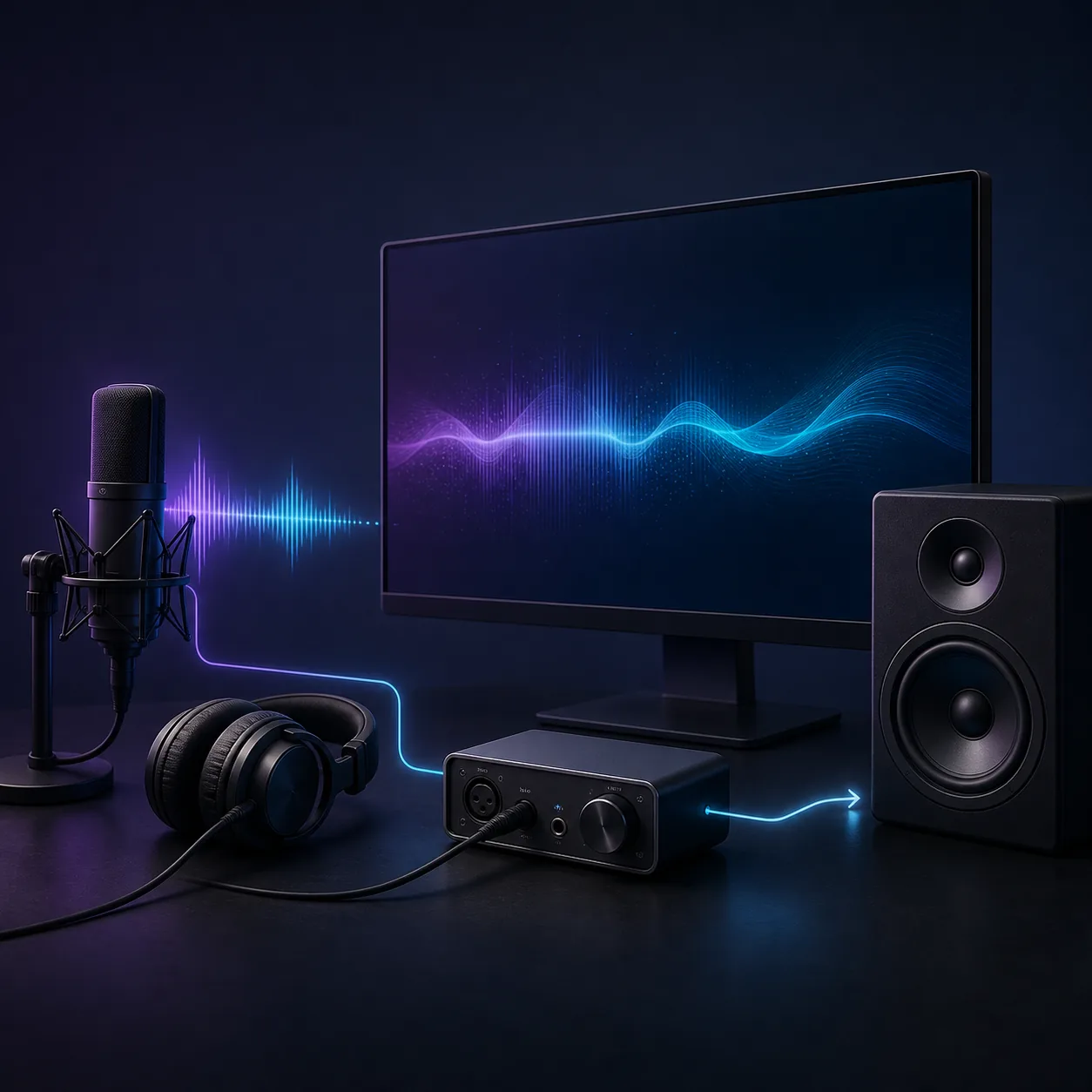
Start by deciding whether the delay is in every game or only one app. Connect a wired headset or the TV speakers directly, turn off extra audio processing, and compare a clear sound with a matching visual cue. If the direct path is good but a soundbar, Bluetooth headset, Remote Play device or capture card is late, fix that path instead of changing global PS5 settings. Test the same scene again after each change and keep the lowest stable delay without crackles, dropouts or echo.
Identify where the PS5 audio delay begins
Before changing a setting, play the same short scene twice and describe the symptom precisely. A voice that is always late behind the character's mouth is a fixed offset. A sound that starts correctly and then slips farther away suggests buffering, a clock mismatch or an unstable stream. A sudden gap after changing scenes can point to an app, receiver or capture path resetting its buffer.
Use a repeatable event such as a menu click, a weapon sound or a spoken line with a clear visual start. Keep the game, display mode, volume and listening position fixed. If you can hear a delay only through a capture preview, check the recorded file and direct TV output before adjusting the game. Monitoring software often adds its own preview buffer.
| What you hear | Most likely boundary | First comparison |
|---|---|---|
| Delay in every game and menu | Display, receiver or console output path | Direct TV speakers versus the normal soundbar or receiver. |
| Delay in one game only | Game mix, cutscene or device profile | Another game using the same output and display mode. |
| Delay only in a headset | Headset, adapter, Bluetooth or USB path | A wired headset or direct TV output. |
| Delay only in Remote Play | Network, client device or stream buffering | The same scene on the console display without Remote Play. |
| Preview is late but recording is fine | Capture preview monitoring | The saved recording and direct audio, not the preview window. |
Run a simple PS5 audio delay test
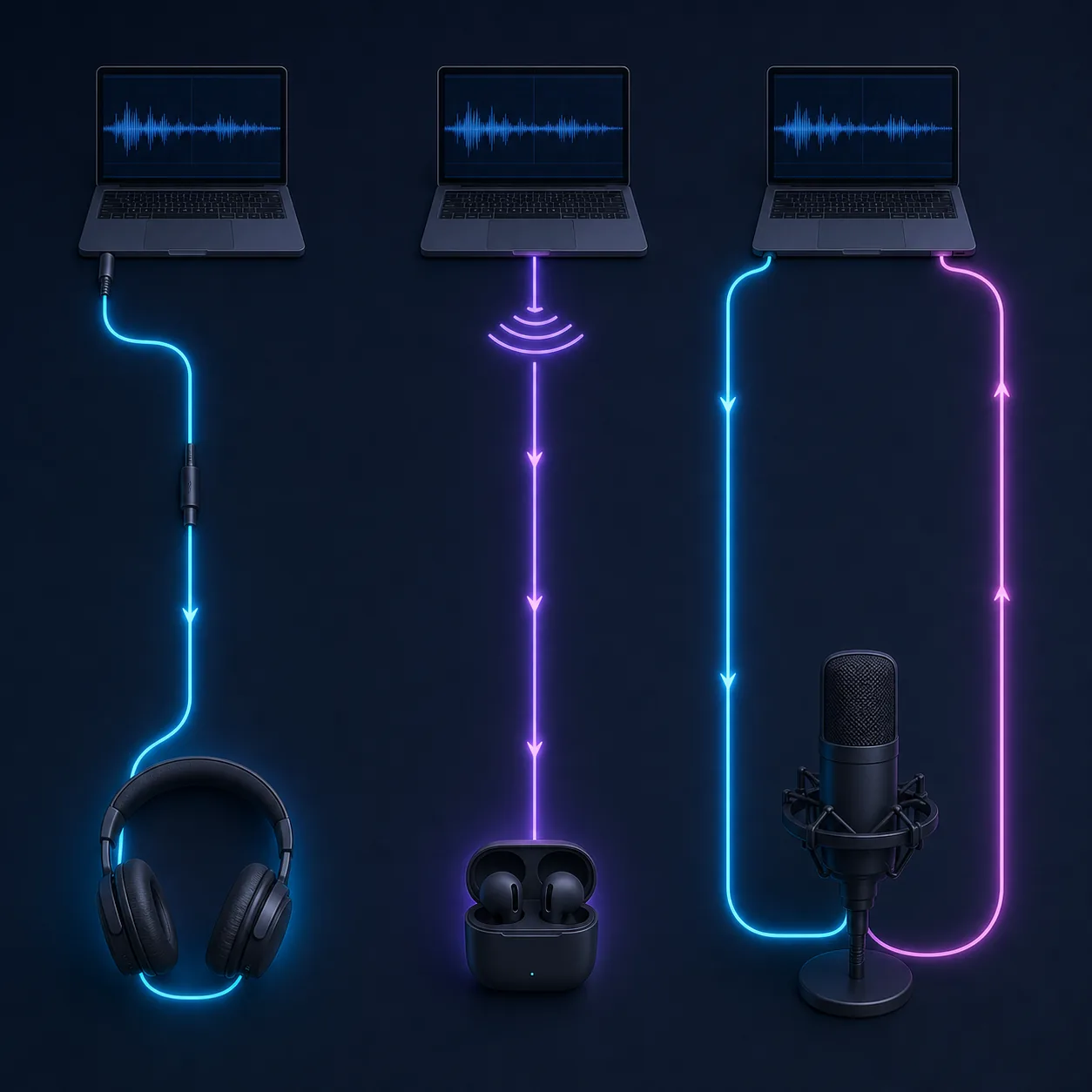
Start with the shortest chain you can make: PS5 to the display or to a wired headset connected directly to the controller. Disable the soundbar, AV receiver, Bluetooth transmitter, USB mixer and capture preview for this first check. The purpose is not to produce a laboratory number; it is to learn whether the console and a direct output feel synchronized under the same scene.
A visual flash and a short sound make a useful repeatable reference. The site's Audio Sync Test can help you practise the comparison, while the audio delay testing guide explains how to repeat at least five trials. For a console, confirm the result with an actual game because a browser test cannot reproduce every HDMI, game-mix or display buffer.
- Choose one scene
Use the same menu click, game effect or dialogue line for every before-and-after comparison.
- Test direct output
Use TV speakers or a wired headset and disable extra receivers, adapters and preview windows.
- Repeat five times
Record whether the gap is fixed, growing or jumping instead of trusting one reaction.
- Change one link
Reconnect or bypass one soundbar, headset, adapter, setting or client device at a time.
- Keep a stable result
Prefer a consistent delay without glitches over an aggressive setting that makes audio unreliable.
Fix PS5 audio delay on a TV, soundbar or headset
When the TV picture is ahead of the sound, first select the display's game or low-latency mode and temporarily disable extra picture or sound processing. Features such as surround virtualization, dialogue enhancement, volume leveling and automatic lip-sync can add a buffer. Names differ by brand, so compare the direct, least-processed mode before you search for a perfect number.
If a soundbar or AV receiver is in the chain, test PS5 to TV audio and PS5 to the receiver separately. HDMI eARC, optical output and pass-through settings can put video and audio on different paths. A constant offset can sometimes be corrected in the display or receiver, but a delay that changes after menus, inputs or scenes needs a path and firmware check rather than a random offset.
Reduce PS5 audio delay in Remote Play
Remote Play is a streamed path, so the client device receives compressed video and audio before it can play them. A busy Wi-Fi network, weak signal, long distance from the access point or a power-saving mode can make the buffer grow. Compare the same scene on the local PS5 display and on the Remote Play client before changing game audio settings.
Use a stable network connection where possible. Wired Ethernet for the PS5 or client can remove one source of jitter, but it cannot erase the client device's audio buffer. Close downloads and video calls, keep the client awake, and test one output device directly on the client. If a Bluetooth headset is connected to the phone, tablet or computer, compare its wired or built-in speakers as a separate path.
Fix PS5 audio delay with a capture card
Capture cards can make game audio appear late in a preview while the saved recording is aligned. The preview must receive, decode and draw the signal, so it is not a reliable reference for live monitoring. Test the TV or headset directly, record a short clip, and compare the recording before you edit a global offset.
If the recording itself is late, map the path: PS5 HDMI output, capture-card input, USB connection, capture software, audio monitoring and stream encoder. Avoid routing the same game audio through both Desktop Audio and the capture source because two copies can sound like delay or echo. Match the capture software's sample rate to the rest of the setup and check for dropped frames or USB warnings.
A practical PS5 audio delay fix order
Use the least disruptive test first. Restart the PS5, display and audio device, select the intended output, and repeat the same scene. Then bypass one external device, disable one processing feature or swap one connection. This keeps the cause visible and makes it possible to return to the last known-good state.
If the direct baseline is good, add the normal chain back one link at a time: receiver, soundbar, headset adapter, capture card or Remote Play client. The first link that brings the delay back is the one to inspect. Look for a game mode, audio format, lip-sync control, firmware update or monitoring route that changes buffering. Avoid copying a millisecond value from a different TV or headset.
- Restart the complete chain
Power-cycle the console, display, receiver or headset and retest the same event.
- Bypass one device
Test direct TV or wired output before changing global game or console settings.
- Disable one processor
Try game mode, direct audio or a neutral format, then repeat the baseline.
- Reconnect the normal path
Add the soundbar, adapter, capture card or client back one link at a time.
- Save the working setup
Note the output format, device mode, connection and test result so a later update is traceable.
Confirm the PS5 audio delay fix without creating new problems
After a change, test more than one game or scene and listen for dialogue, effects and menu sounds. Check the beginning and end of a longer session when the problem used to grow over time. If the issue appears only after the display wakes, an input changes or Remote Play reconnects, reproduce that transition before you call the fix complete.
Keep a short troubleshooting note: PS5 output setting, display or headset model, HDMI/eARC or USB route, game mode, receiver setting, client device and whether the result came from direct listening, a recording or a preview. This prevents a later cable or firmware change from being mistaken for a new console fault.
Compare the direct path first
Run a repeatable flash-and-beep comparison, then verify the same game scene through the PS5 path that feels late.
PS5 audio delay FAQ
Why is my PS5 audio delayed on the TV?
The display, soundbar, receiver or HDMI path may be buffering audio. Test direct TV speakers in game mode, disable extra processing, and add the normal sound path back one device at a time.
How do I fix PS5 headset audio delay?
Compare the headset with a wired headset or direct TV output, use the headset's gaming or low-latency mode, and check its USB or wireless adapter. Codec and buffer behavior can change delay even when the console is unchanged.
Does Bluetooth cause PS5 audio delay?
Bluetooth and wireless adapters can add encoding, transmission and decoding buffers. Compare a wired path, keep the adapter close and use a low-latency mode when available.
Why is PS5 Remote Play audio late?
Remote Play adds stream, network and client-device buffers. Compare the same scene on the local console, reduce Wi-Fi congestion, test a wired route and compare client speakers with Bluetooth headphones.
Why is my capture-card PS5 audio delayed?
Preview windows often add monitoring delay. Check the saved recording and direct output, mute duplicate audio routes, match sample rates and apply an offset only when the gap stays fixed.
Can game mode fix PS5 audio delay?
Game mode can reduce display processing, but it is not a universal fix. Verify the direct baseline, compare the normal audio chain and retest the same scene after changing one setting.
PS5 and Remote Play references
- PlayStation 5 official product pageFirst-party PS5 hardware and feature reference.
- PlayStation Remote PlayFirst-party overview of streaming PS5 and PS4 games to another device.
- Microsoft Learn: Low latency audioBackground on audio paths and why buffers affect perceived timing.