
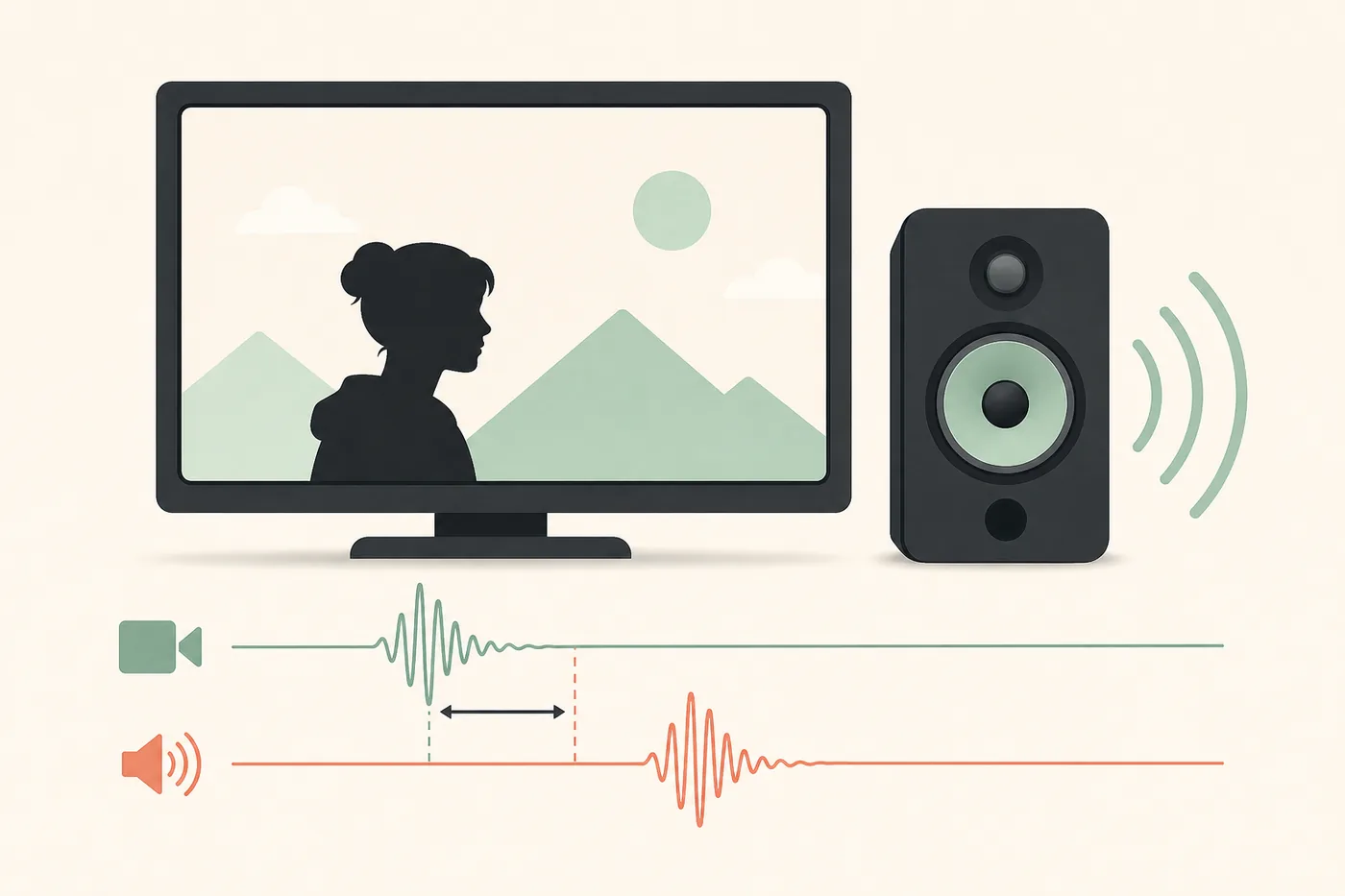
Pause on a clear cue such as a clap or spoken consonant, then use VLC's default audio-delay shortcuts if they are still configured, or open Tools > Track Synchronization and change Audio track synchronization in milliseconds. Start with a small step such as 50 ms, replay the same cue, and keep the setting only when the offset improves. Set the field back to 0 ms to reset it. If one file is wrong everywhere but other files are correct, the media file is more likely to be the source than VLC itself.
The sound is consistently early or late. A measured VLC audio offset can compensate for a stable playback path.
The sync starts well and moves farther away. Look for a file, frame-rate, decoder, or playback stability problem.
Only one movie or recording is wrong. Compare another file before changing a global preference.
Bluetooth, HDMI, a soundbar, or system processing may add the delay after VLC has decoded the media.
Diagnose the VLC audio delay before changing settings
Choose a moment with a sharp visual and audio event: a clap, a drum hit, a door closing, or a person saying a hard consonant. Replay the same two or three seconds several times. Decide whether the sound is always early, always late, or aligned at the beginning and increasingly wrong later. That distinction matters because a fixed VLC audio delay can correct a stable offset, while a growing drift needs a different investigation.
Open a second video from another source and keep the same output device. Then change only one variable: the file, VLC, the audio output, or the display path. If a second file is synchronized, do not immediately alter system-wide audio. If every file changes when you switch from Bluetooth or a soundbar to wired headphones, the delay is downstream of VLC. For a broader baseline, use the Audio Sync Test with the same screen and speakers.
Do not judge the offset from a soft sound or a scene with intentional editing. Use a visible transient and listen at normal volume. Human reaction time can make a manual judgment feel larger than it is, so repeat the comparison instead of trusting one impression.
| What you observe | Likely boundary | Best next check |
|---|---|---|
| Speech is always late by about the same amount | Playback offset or output processing | Adjust Track Synchronization in small steps |
| Sync starts correctly and drifts | Media timing, decoder, or playback stability | Test another file and watch the same cue for several minutes |
| Only one downloaded file is wrong | Source file or its tracks | Compare another player or a corrected encode |
| Bluetooth is late but wired audio is fine | Wireless buffering or codec path | Compare the Bluetooth Latency Test and the wired baseline |
| Every video is late on one screen | HDMI, TV, soundbar, or display processing | Bypass the soundbar and compare the screen speakers |
Use VLC audio-delay shortcuts for a quick comparison
VLC normally provides keyboard shortcuts for increasing or decreasing audio delay during playback. On an unchanged default layout, F and G are commonly used for the two directions, but shortcuts can be remapped, disabled, or captured by another application. Use the on-screen feedback as a temporary experiment rather than assuming the key direction from memory.
Press the shortcut once, replay the same cue, and note whether the sound moved closer to the picture. Continue with small changes until the offset is easier to judge. If the shortcut makes the problem worse, use the opposite direction. The goal is to discover the sign and approximate size of the offset before entering a precise number in Track Synchronization.
This method is useful for a quick movie or live playback check, but it is not a permanent repair for a badly muxed file. A shortcut adjustment can also be lost when the media is closed or when another output path adds a second delay.
| Shortcut result | Interpretation | Next move |
|---|---|---|
| Sound moves closer | The direction is correct | Repeat with a smaller step and record the approximate offset |
| Sound moves farther away | The direction is reversed | Use the opposite adjustment |
| Nothing changes | Shortcut mapping may differ | Open Tools > Preferences > Hotkeys or use Track Synchronization |
| Sync changes then returns | The file or output path is still the cause | Verify another file and another output before saving anything |
Adjust VLC audio delay in Track Synchronization
For a repeatable correction, open Tools and choose Track Synchronization. In the Audio/Video effects area, find Audio track synchronization and enter an offset in milliseconds. Use a small value first, such as 50 ms, then replay the same cue. A stable correction should improve both speech and sharp impacts instead of helping only one scene.
If the sound arrives after the lips or impact, you generally need to move audio earlier; if the sound arrives before the picture, you generally need to delay audio. VLC's sign convention and the behavior of a particular output chain are best confirmed by the live preview, so test the direction instead of applying a large number based on a guess. Keep a note of the value that works for this file and output combination.
Track Synchronization is a playback adjustment. It does not rewrite the media file. If you need the correction to travel with a file, fix the tracks in a video editor or remux/transcode it with a tool that preserves the intended timing. Avoid replacing a good source file just because a Bluetooth speaker adds delay after decoding.
| Symptom | First value to test | Why |
|---|---|---|
| Audio is slightly behind video | A small advance, then compare | The sound needs to arrive earlier in the playback path |
| Audio is slightly ahead of video | A small positive delay, then compare | The sound needs to wait for the picture |
| The exact amount is unclear | 25–50 ms steps | Small steps reduce overshooting and make direction easier to confirm |
| Different outputs need different values | Record one value per setup | TV, Bluetooth, wired headphones, and speakers have different processing paths |
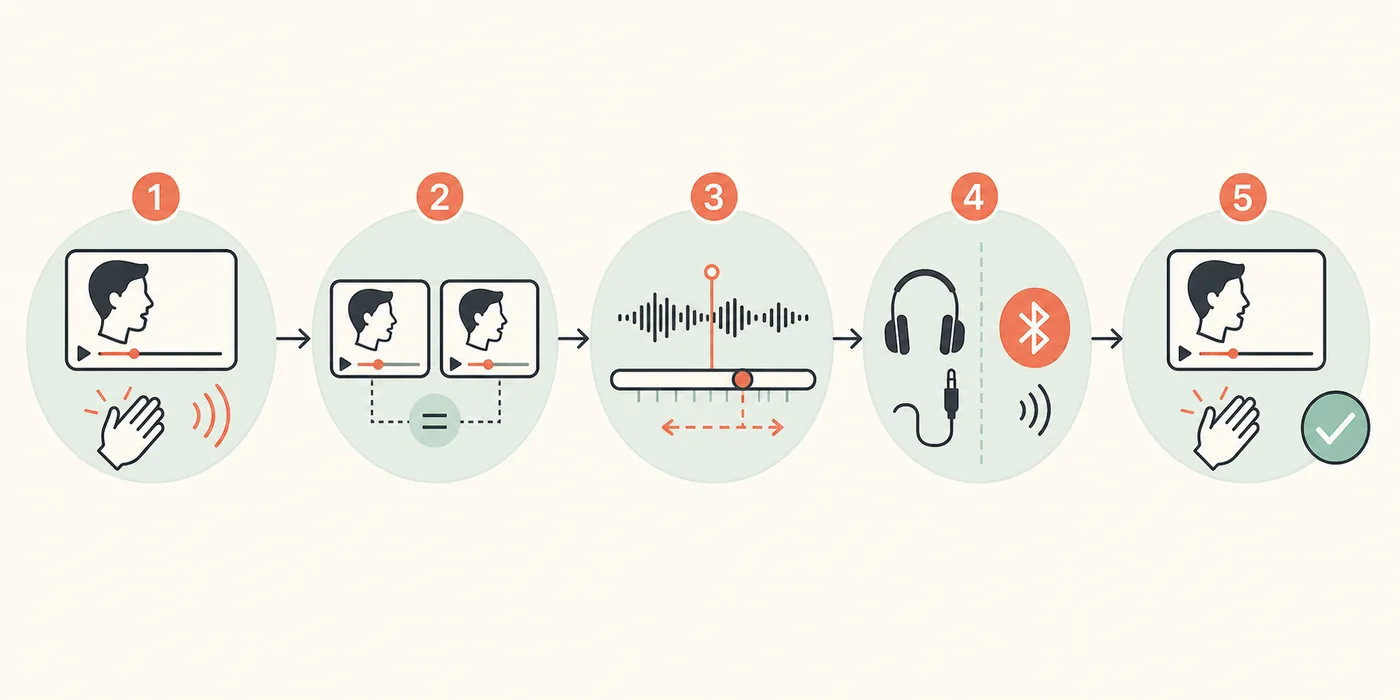
- Open the synchronization control
Start playback, open Tools > Track Synchronization, and locate Audio track synchronization.
- Enter a small offset
Use a modest millisecond change so the next comparison shows direction without overshooting.
- Replay one repeatable cue
Use the same clap, consonant, or impact instead of a different scene.
- Record the working value
Keep the value with the file and output path; do not assume it applies to every device.
Reset VLC audio delay and avoid a permanent wrong offset
To reset a manual delay, return Audio track synchronization to 0 ms and replay the original cue. If you used a keyboard shortcut, press the opposite adjustment or reopen the synchronization field and set the value explicitly to zero. Restart the media after resetting so you are not judging a previously buffered moment.
A common mistake is to compensate for one Bluetooth, HDMI, or soundbar path by leaving a large VLC offset in place. The result may look correct on that device and become wrong on laptop speakers or wired headphones. Make a wired or built-in speaker comparison before treating an offset as a file-level fix. The Bluetooth Latency Test can help show whether the wireless path is the variable.
If the offset returns after closing VLC, that does not necessarily mean the adjustment failed. It may have been a per-playback change, a different input file, or a device that was reconnected with another profile. Preserve the original settings, change one layer at a time, and avoid registry or codec tweaks that you cannot reverse.
Use this when a previous experiment made correctly synchronized files sound wrong.
A wired baseline separates VLC timing from Bluetooth or soundbar buffering.
Do not change VLC, Windows, the TV, and the file at the same time.
A device-specific delay should not become a permanent system-wide offset.
When VLC audio delay is really drift, a file problem, or an output problem
A fixed offset and a growing drift are different problems. If a 100 ms correction helps the opening scene but the second half becomes increasingly wrong, do not keep increasing the offset. Check whether the file uses unusual frame-rate timing, whether the audio and video tracks have different durations, and whether playback becomes unstable when the computer is busy. Try a known-good file before changing the operating system.
One-file failures are often caused by the source or its track layout. Compare the same file in another current player, inspect whether the issue begins at a cut, and test a fresh encode only when the source can be reproduced. If every player shows the same sync error, VLC is not the only place to repair it. If only VLC is wrong, reset preferences or compare hardware decoding without changing several settings at once.
Output devices can add a stable delay after VLC has decoded the stream. Bluetooth buffering, HDMI processing, TV picture modes, surround virtualization, and soundbar lip-sync controls all change the final timing. For Windows-wide crackles or scheduling issues, use the Windows 11 Audio Latency Fix guide; for browser video specifically, see the YouTube Audio Delay Fix guide.
| Pattern | Do not do | Prefer this |
|---|---|---|
| The error grows over time | Keep adding a larger fixed offset | Investigate timing, frame rate, decoder, and file integrity |
| Only one file fails | Change system audio for every video | Compare another player and another file first |
| Only Bluetooth fails | Blame VLC before testing wired output | Measure the wireless path separately |
| TV or soundbar fails | Copy a random lip-sync number | Bypass processing and compare PCM or direct speakers |
Verify the VLC audio delay fix with the same setup
Return to the original file, original timestamp, and original output after every meaningful change. Check a talking face and a sharp impact. A useful correction stays close after pausing, seeking, and watching for several minutes. It should also make sense when you repeat the test, not only during one lucky replay.
If the result is comfortable on wired headphones but still late on a Bluetooth speaker, keep the two conclusions separate: VLC may now be synchronized while the wireless path still adds delay. If the result is wrong on every output, reset VLC to 0 ms and investigate the file or system. Browser tests are practical estimates, not laboratory certificates, so use repeated comparisons and consistent conditions.
When you need a measured comparison rather than a visual judgment, run the Audio Sync Test and record the average under the same device path. The value is most useful for comparing before and after changes, not for claiming that every player or device has one universal latency number.
Use the original video and repeatable timestamp after each change.
Check both speech and a sharp impact so the correction is not scene-specific.
Keep the screen, headphones, speaker, and connection unchanged for the final comparison.
A fix should survive seeking and a second replay instead of appearing once by chance.
Compare the same audio delay outside VLC
Use a repeatable flash-and-beep cue to tell whether the remaining offset belongs to the media player or the output device.
VLC audio delay FAQ
How do I fix VLC audio delay quickly?
Replay a clear speech or impact cue, use the configured audio-delay shortcut for a quick direction check, then open Tools > Track Synchronization and change Audio track synchronization in small millisecond steps. Verify the same cue again before keeping the value.
What are the default VLC shortcuts for audio delay?
On many default VLC layouts, F and G adjust audio delay in opposite directions. Shortcuts can be changed or captured by another program, so confirm the result in playback and use Track Synchronization when the keys do nothing.
How do I reset audio delay in VLC?
Set Audio track synchronization back to 0 ms, or undo the temporary shortcut adjustment, then restart the media and replay the original cue. Resetting matters when a device-specific experiment made other files sound wrong.
Why is only one VLC video out of sync?
The file may contain misaligned tracks, unusual frame-rate timing, or a damaged encode. Compare another file and another player. If every player shows the same error, repair or replace the source instead of changing a global audio offset.
Why does VLC audio drift further out of sync?
A growing error is not the same as a fixed VLC audio delay. Check the file's timing, track duration, decoder stability, and system load. Keep testing with a known-good file before adding a larger fixed offset.
Can VLC permanently fix a badly synchronized video?
Track Synchronization changes playback timing but does not rewrite the media. For a correction that travels with the file, edit or remux the tracks with a suitable video tool and verify the exported result.
VLC timing references
- VLC official project pageUse the official VideoLAN project page when checking the player itself and its documentation links.
- Independent VLC audio-sync walkthroughA practical reference for the Track Synchronization workflow; confirm the behavior in your installed VLC version.