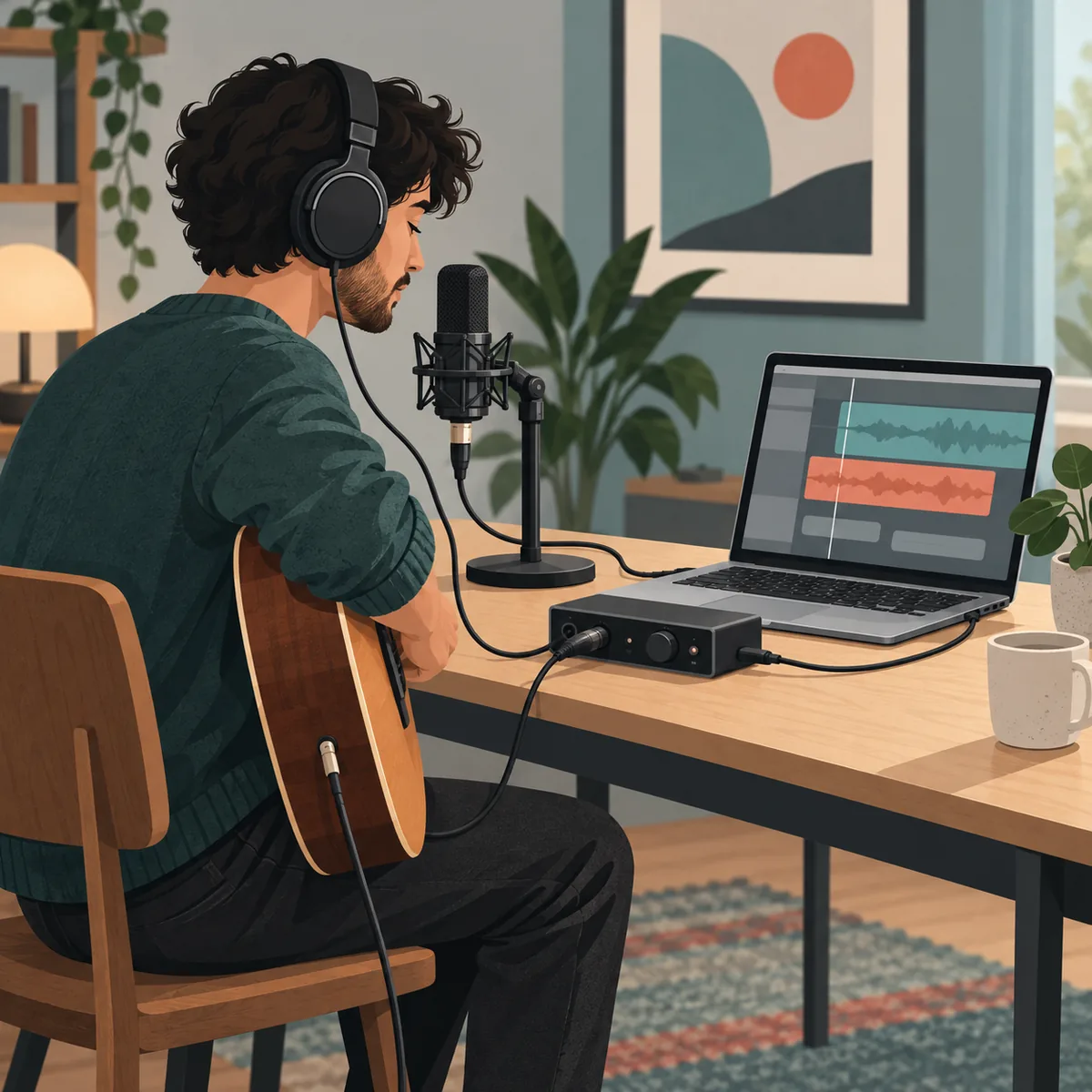
For real-time recording, use wired headphones and confirm the intended input and output. Compare GarageBand monitoring with your interface's direct-monitor option, but do not hear both paths at once. Bypass heavy processing only while testing. Buffer controls vary by app and device, so use a menu only if it exists in your setup.
Compare the live input through GarageBand with the interface's direct-monitor route.
Repeat the same passage through a wired output before changing the project.
Undo the last change and restore a stable monitoring path before trying again.
Compare the take with the project click; a slow monitor can affect performance timing.
GarageBand latency: identify what is actually late
During recording, sound can travel from a microphone or instrument through an interface and GarageBand, then return through the Mac output. A late live monitor differs from a take that plays out of time. Identify which one you hear before changing settings.
Make a short test with the usual project, input, and output. Speak or play a repeated note, then play the recorded region back. If playback is aligned but the live signal felt late, focus on monitoring. If the recorded attack is misplaced against the beat, check input and performance timing. Do not move regions until you know which case applies.
A keyboard can also send MIDI notes late before GarageBand creates a sound. If only software instruments feel slow, compare a wired controller and a simple patch. If voice or guitar is delayed too, inspect the shared audio route.
| What you hear | Likely area | First comparison |
|---|---|---|
| Live voice is late, playback is aligned | Monitoring return | Compare software and direct monitoring |
| Only AirPods or Bluetooth is late | Wireless output | Use wired headphones on the same take |
| A software instrument responds slowly | MIDI input or instrument load | Try a wired controller and a simple patch |
| The recorded region is out of time | Input or performance timing | Record a short click-aligned test again |
Fix GarageBand latency while monitoring a live track
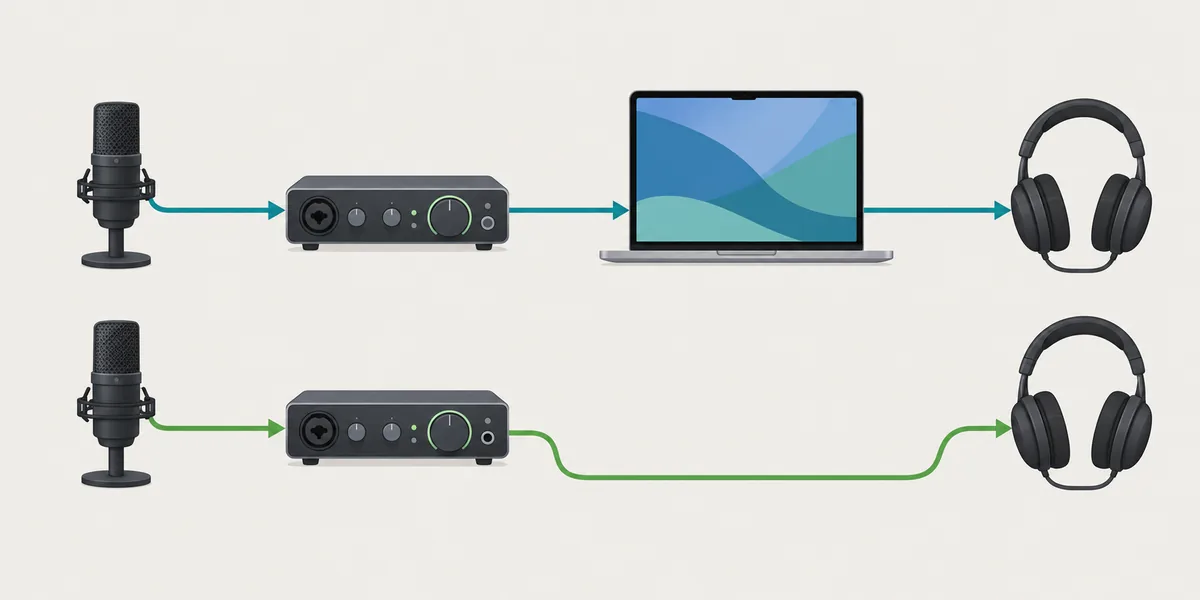
Software monitoring sends input through GarageBand and back to the headphones. It lets you hear software effects, but each active stage can add delay. An interface's direct-monitor route returns input without the same DAW round trip, though it may not include GarageBand effects.
Choose one route for the test. Hearing both direct and software copies can sound like an echo. Mute one path, then listen again. Apple's current guide includes input monitoring for audio tracks; control placement varies by app version and track type.
Direct monitoring is not universal. Some interfaces use a physical blend control, a companion mixer, or no direct route. If you cannot identify the control, test GarageBand monitoring alone and check the interface manual before changing it.
Check headphones, interfaces, and Mac audio routing
Bluetooth adds wireless buffering, so it is a poor reference for live monitoring. Use wired headphones on the same take before changing the project. Keep the output device fixed during each comparison.
Confirm GarageBand uses the intended input and output. A built-in microphone with Bluetooth headphones is a different route from an interface with wired headphones. Disconnect unused devices and remove unnecessary virtual routes. A hub is not automatically the cause, but an unstable connection can create dropouts; restore stability before chasing lower latency.
Reduce processing without destabilizing the recording
Several effects on a live track can delay the sound in your headphones. Temporarily bypass processing you do not need to perform, then restore the intended sound after the test. A lighter path may help, but does not prove one plug-in caused the delay.
Close CPU-heavy applications during the check. For a software instrument, compare a simple built-in sound with your usual patch. If clicks or dropouts appear, undo the last change; a stable session matters more than the smallest setting.
- Save a copy
Use a duplicate project or a reversible session state.
- Test one track
Keep the input, output, and performance the same.
- Bypass one effect
Keep the change only if timing improves without clicks or dropouts.
GarageBand buffer settings depend on the current setup
Buffer controls depend on the app and device. Advice for Logic Pro or an interface driver does not prove the same menu exists in GarageBand. Apple's current guide contents cover recording and input monitoring, but do not confirm a universal GarageBand I/O buffer selector.
If your installed app or interface visibly exposes a buffer control, change it only when you know what it affects. A smaller buffer can leave less CPU time and cause clicks. Revert if the session becomes unstable. Sample rate alone is not a guaranteed fix; compare the actual monitoring path.
| Control or change | What it may affect | How to use it safely |
|---|---|---|
| Buffer or block size, if exposed | Processing time and CPU headroom | Change one step, record briefly, and revert if unstable |
| Sample rate | Project/device format and conversion | Match supported settings; do not treat it as a guaranteed fix |
| Bluetooth output | Wireless playback buffering | Use wired monitoring when recording live input |
| Direct monitoring | Whether input returns through the DAW | Avoid monitoring the same signal through two paths |
Verify GarageBand latency after every change
Use the same short passage, input, output, and headphones before and after each change. Repeat it and note the route. If the result worsens, restore the previous setup before testing another cause.
A browser mic test can compare a matching hardware path, but cannot read GarageBand's buffer. If playback is aligned but monitoring felt slow, focus on the return route. If the recorded attack shifts against the click, repeat a clean take and inspect the input or controller.
- Record a baseline
Use a short phrase in the normal project.
- Change one route
Try wired headphones or one monitor path.
- Repeat and compare
Check the live feel and recorded region against the project click.
Compare microphone round-trip delay
Use the site's mic test for a separate browser-based baseline. It will not report GarageBand's internal buffer, but it can help compare the same microphone and output path before and after a hardware change.
GarageBand latency FAQ
Why is GarageBand delayed when I record?
The live input may pass through GarageBand, Bluetooth output, an interface route, or a MIDI controller. Compare wired headphones and one monitor path to find which part changes the delay.
Can I change the GarageBand buffer size on every Mac?
Do not assume so. Controls depend on the app and audio device. Use a buffer setting only if it is present and you know which device it affects.
Should I use direct monitoring or GarageBand monitoring?
Direct monitoring can shorten the return path for clean input. Use GarageBand monitoring when you need software effects, and avoid hearing both copies.
Do AirPods add latency in GarageBand?
Bluetooth adds wireless playback delay. Compare the same take with wired headphones before changing the project.
Why does lowering a buffer cause clicks?
A smaller block leaves less processing time and can cause clicks. Restore the last stable setting and reduce unnecessary processing instead.
Can a browser latency test measure GarageBand latency?
No. A browser test measures its own path, not GarageBand processing. Use it only as a separate hardware comparison.
GarageBand recording documentation
- Apple GarageBand User GuideCurrent guide contents include recording audio and turning on input monitoring for audio tracks.